
This article guides you through sending Gift PDFs or Gift Card links with Prezzee Business.
01 Introduction
You will learn how to select card values, add them to your cart, and complete the purchase process.
02 Start Gift Card Order
Click "Start order" to begin creating your gift card purchase.
03 Choose Delivery Method
Click "Create card links or PDF files and send them yourself" to select your preferred delivery option.
04 Proceed To Card Creation
Click "Let's go" to continue to the card customisation process.
05 Select Gift Card
Select your preferred gift card to open the card value selection menu.
06 Open Value Dropdown
Click the dropdown to view available card values.
07 Enter Card Quantity
Fill in the desired card quantity you want to purchase.
08 Add Card To Cart
Click "Add to cart" to include the selected gift card in your shopping cart.
09 Select Additional Card Value
Click the dropdown again to select another card value for additional gift cards if required.
10 Increase Quantity
Click "+" to increase the quantity of the selected gift card if required.
11 Add Additional Cards
Click "Add to cart" to add the additional gift cards to your shopping cart if required.
12 Proceed To Checkout
Click "Continue" to move forward to the payment and order review stage.
13 Access Payment Options
Choose your preferred payment option.
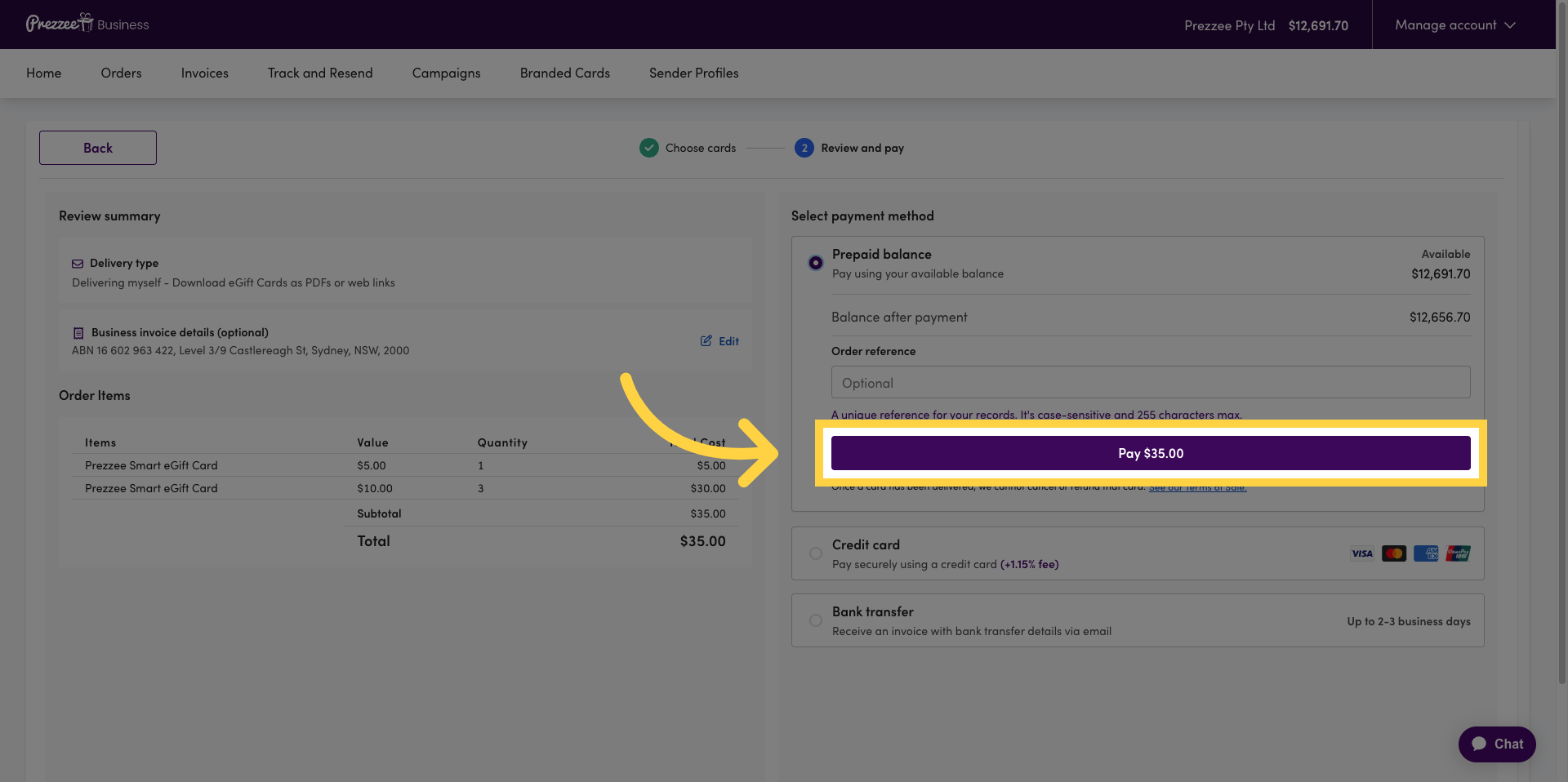
14 Confirm Payment Amount
Click "Pay" to complete the payment for your gift card order.
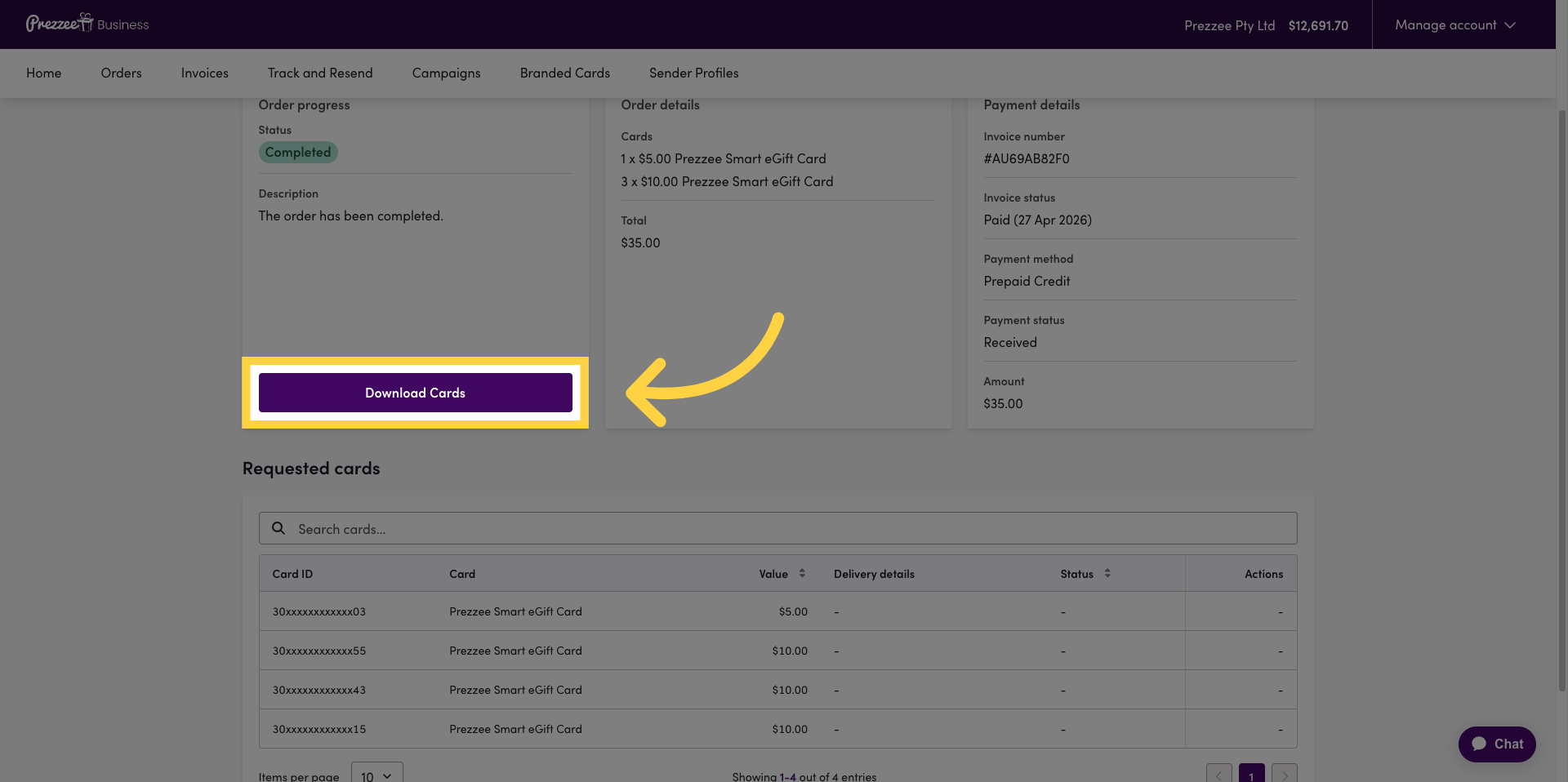
15 Download Gift Cards
Click "Download Cards" to access your purchased gift cards for your distribution.
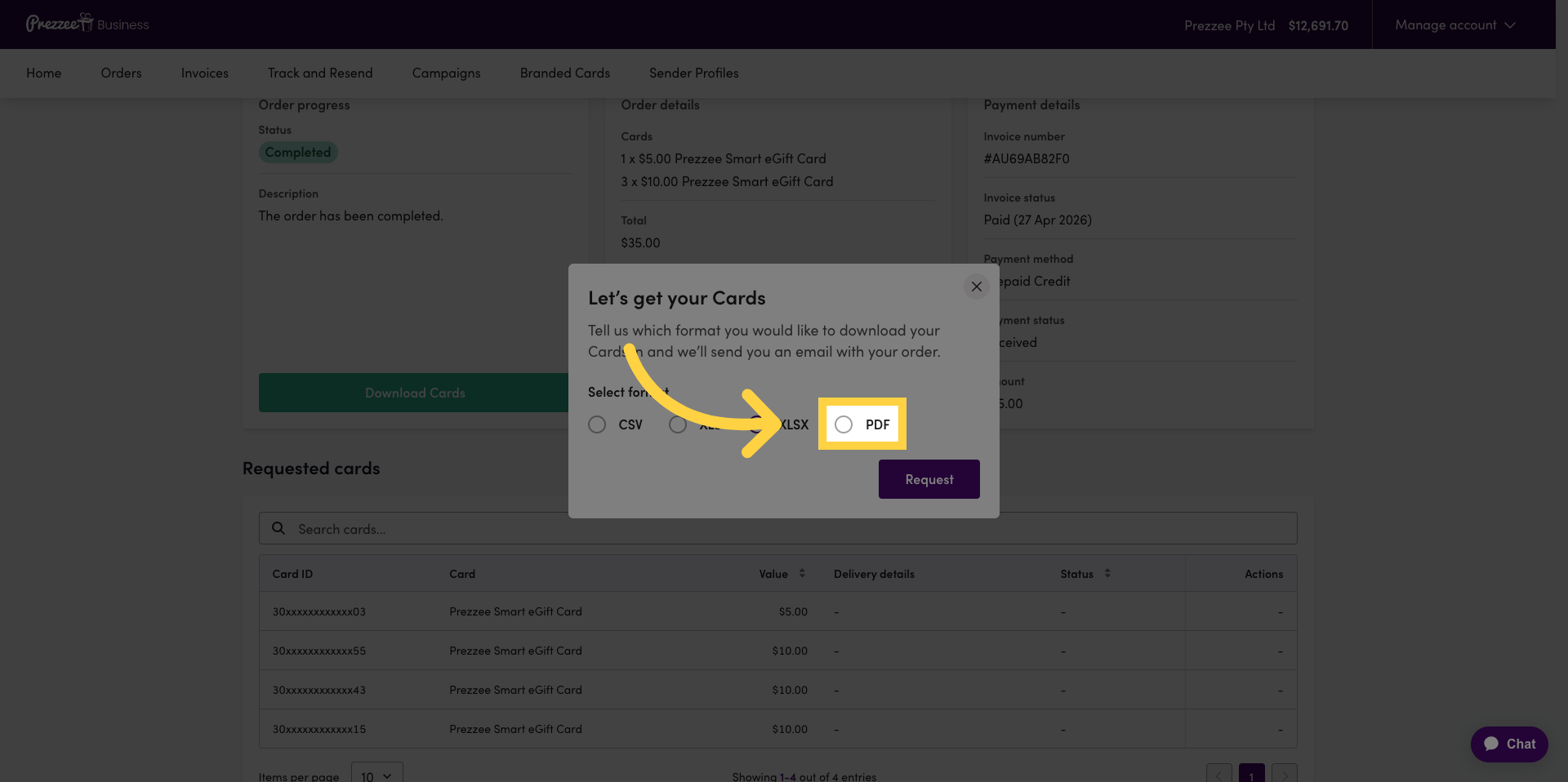
16 Select Gift Card Format
Choose your preferred format for downloading your gift cards.
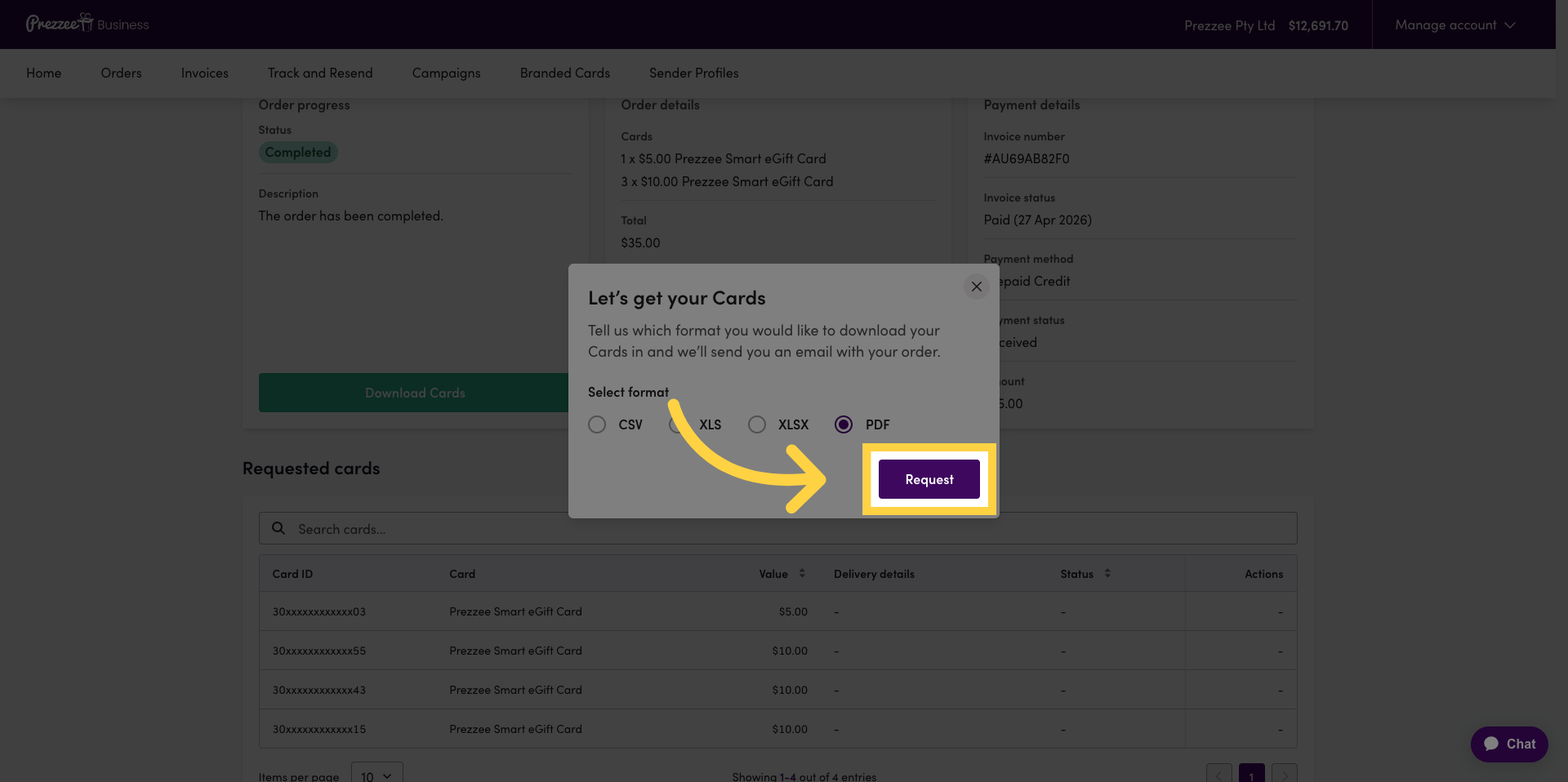
17 Click Request
Click "Request" to initiate the download of your gift cards in your preferred format.
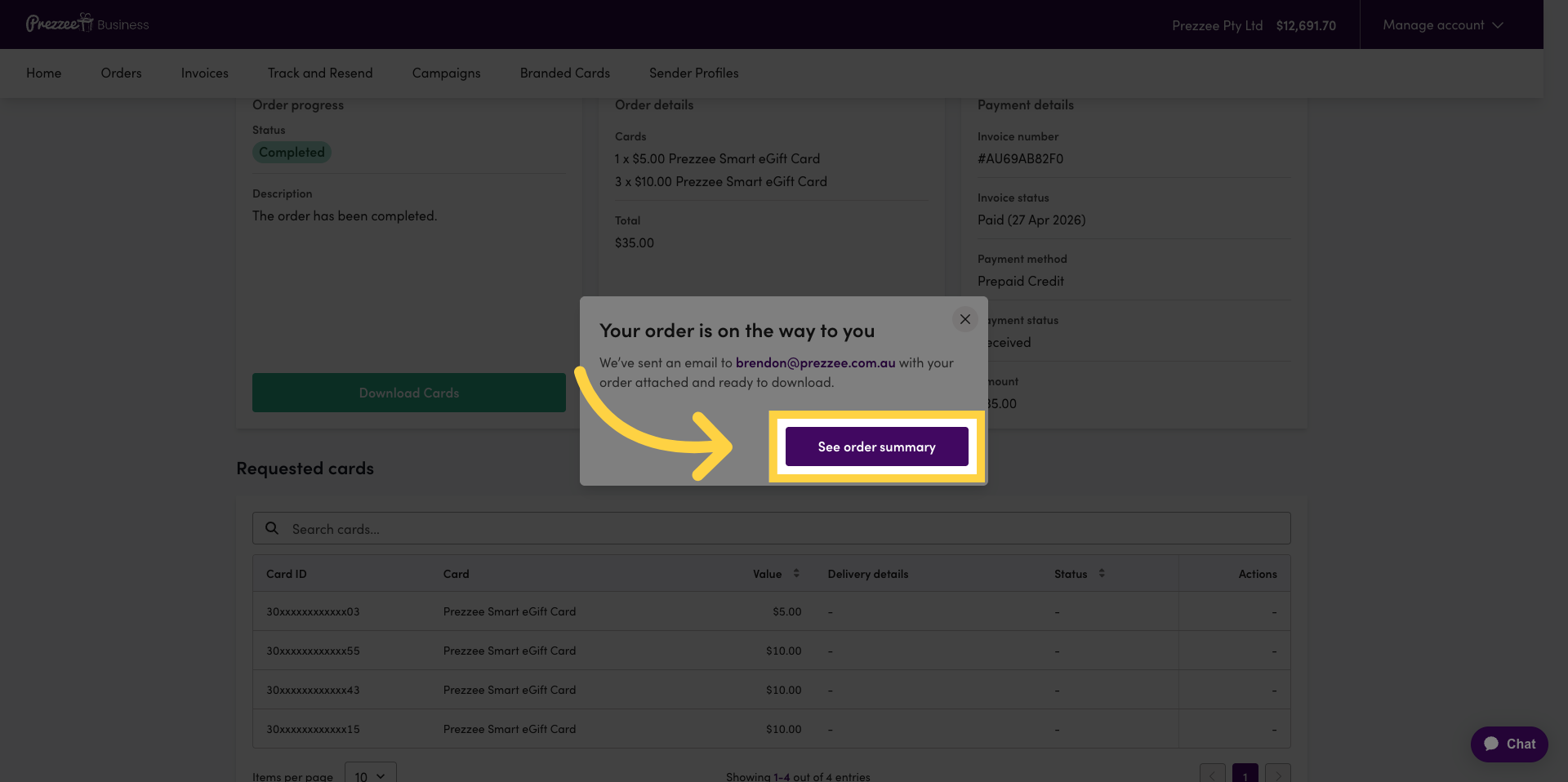
18 View Order Summary
Click "See order summary" to review the details of your completed purchase.
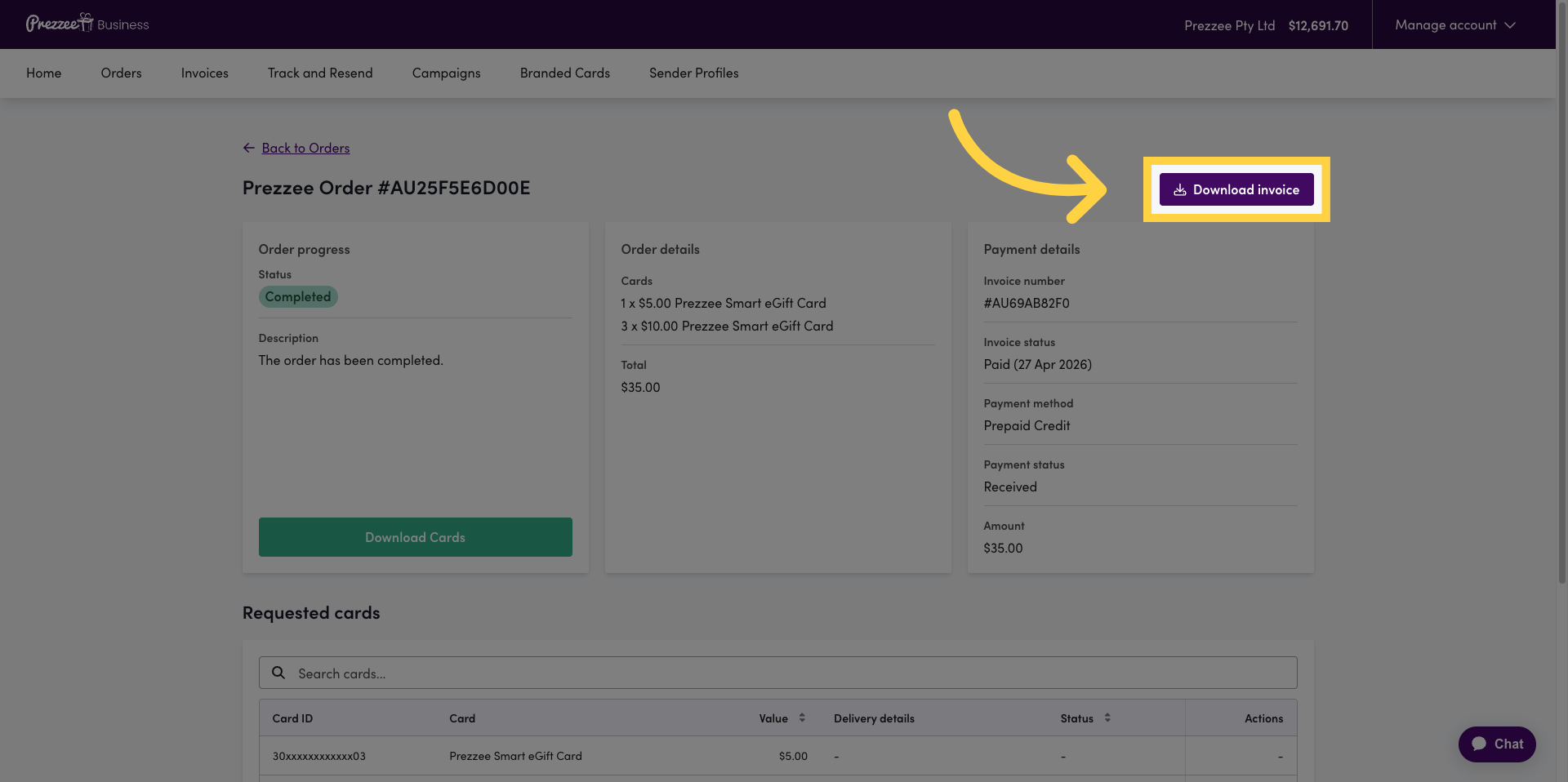
19 Download Invoice (Optional)
Click "Download invoice" to save a copy of your purchase invoice for your records.
You have successfully created and purchased gift cards using Prezzee Business. You will now receive a separate email in your inbox with the link to download your eGift cards in your preferred format.
If you require a different format, simply access your order via your Prezzee Business portal and click the "Download eGift Card" link once again to select a different format.