
This tutorial guides you through placing and scheduling gift card orders using Prezzee Business.
Go to prezzee.com.au
01 Introduction
You will learn how to select recipients, choose cards, add personalised messages, and set delivery times.
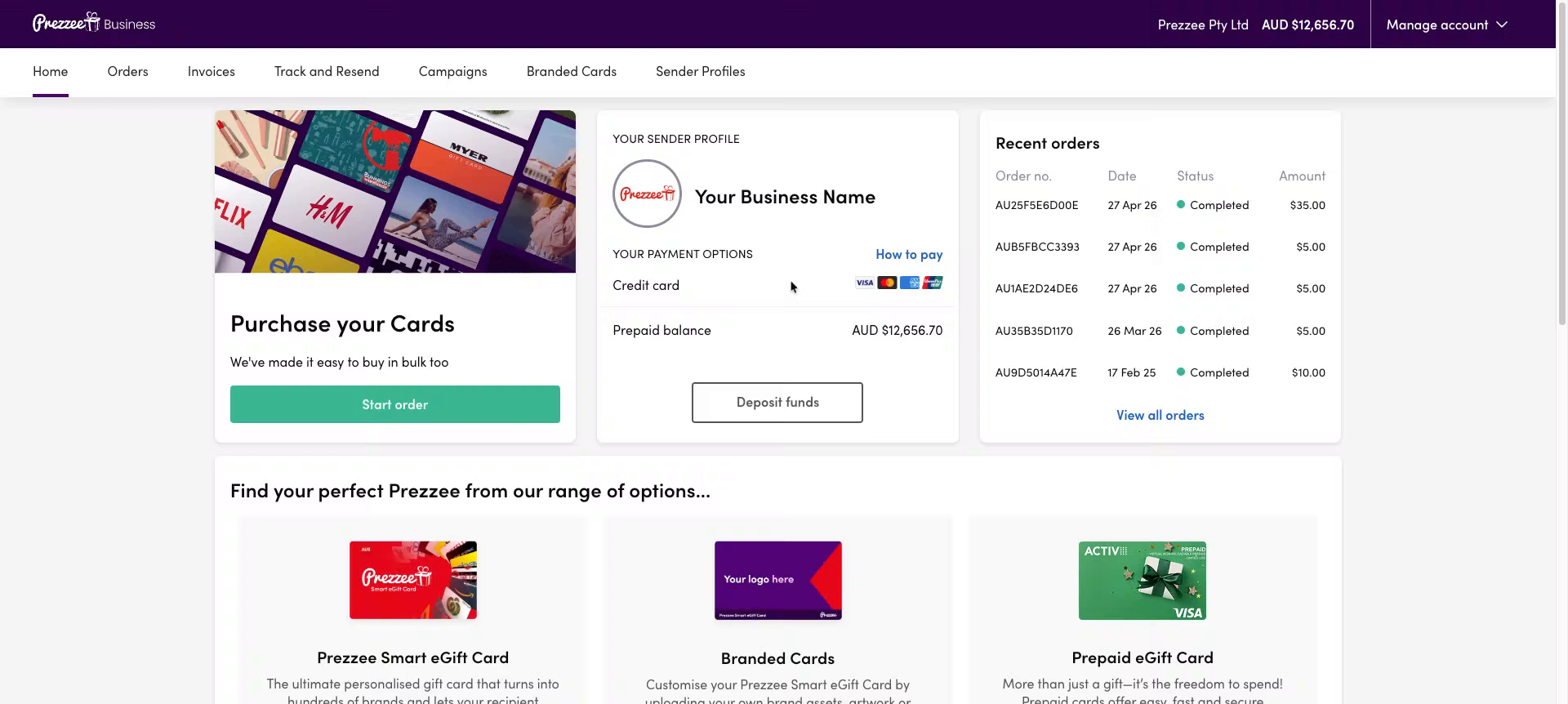
02 Initiate Gift Card Order
Click the Start order button to begin creating a new gift card order.
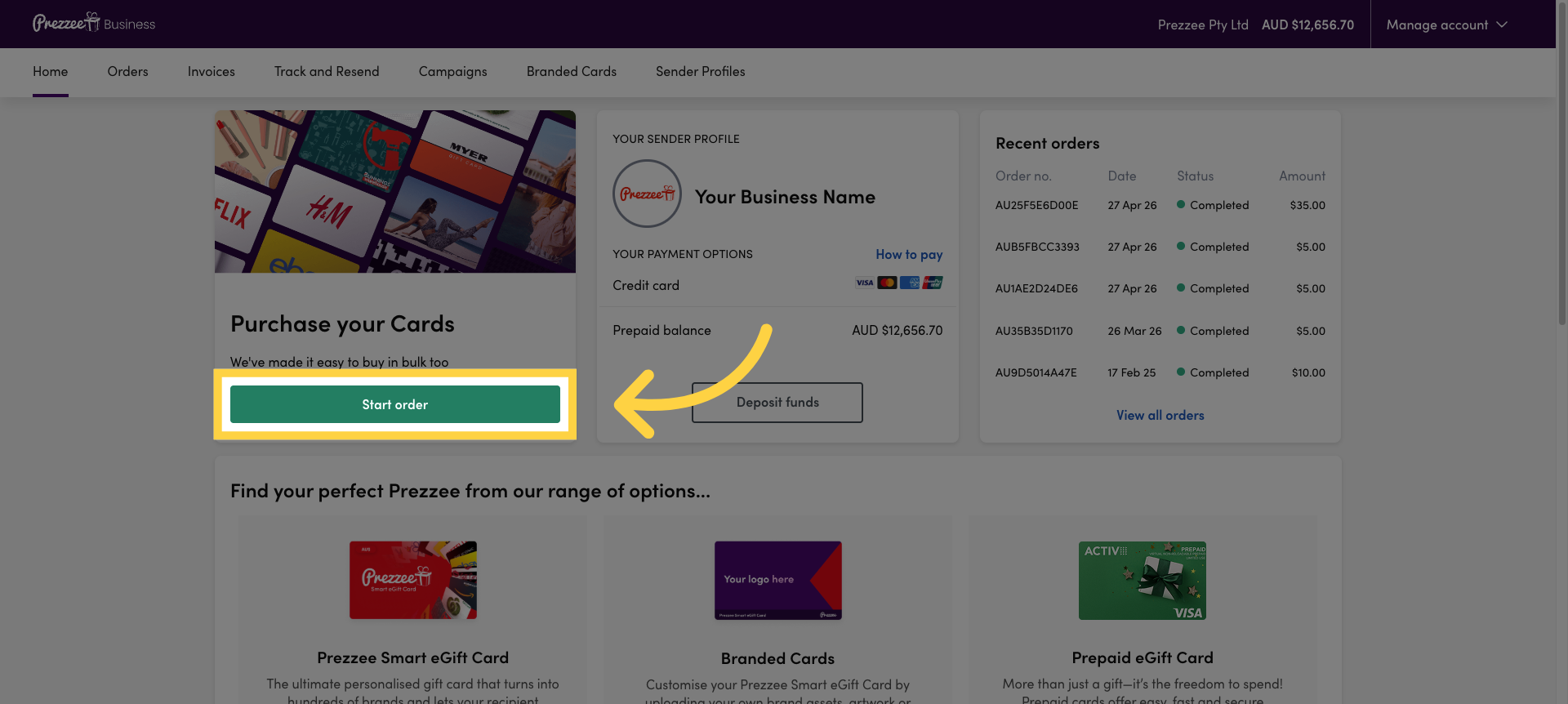
03 Proceed to Order Setup
Click the Let's go button to proceed to the order setup page.
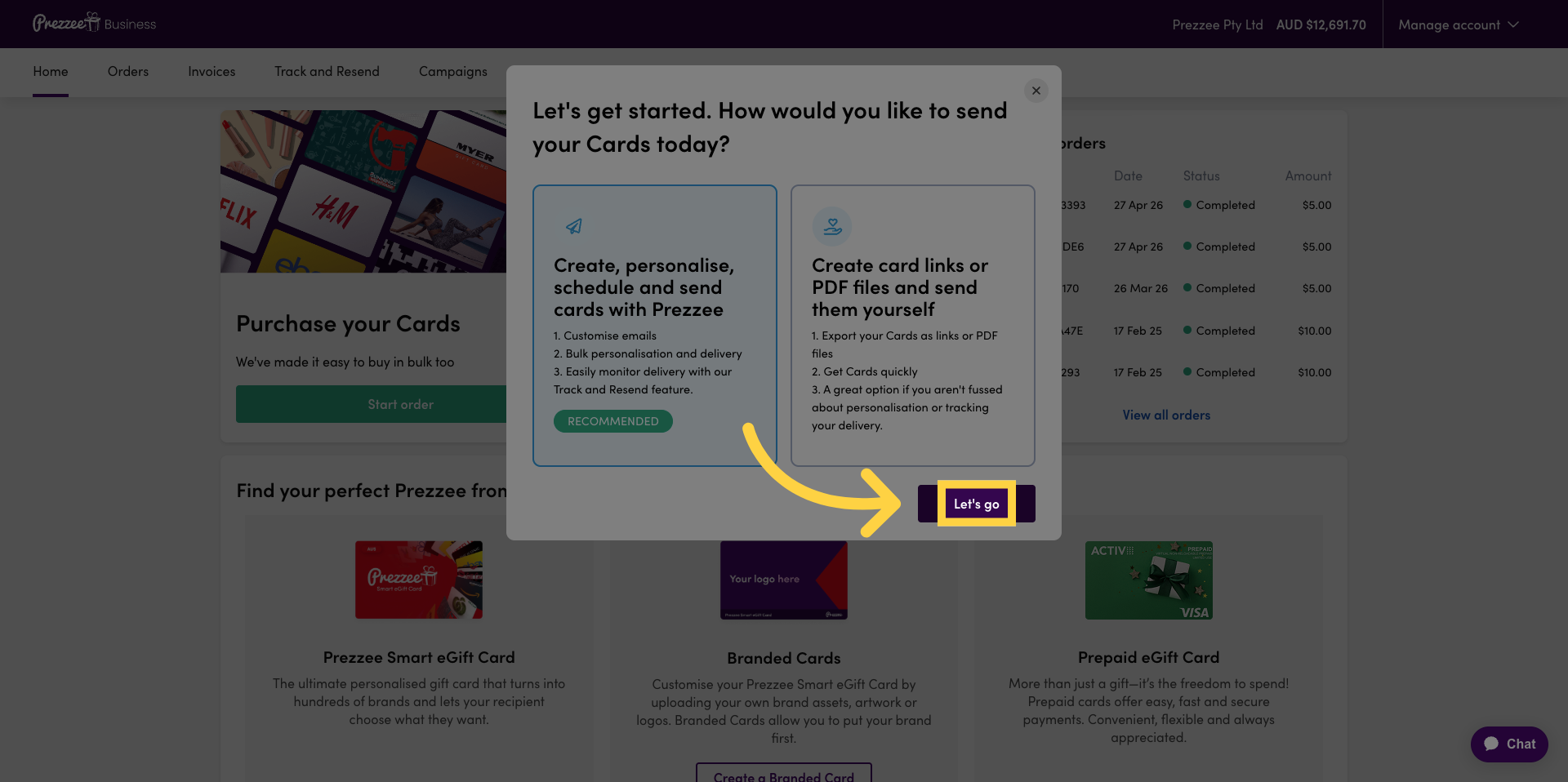
04 Enter Recipient Details
Click the Recipient name field to enter the recipient's name.
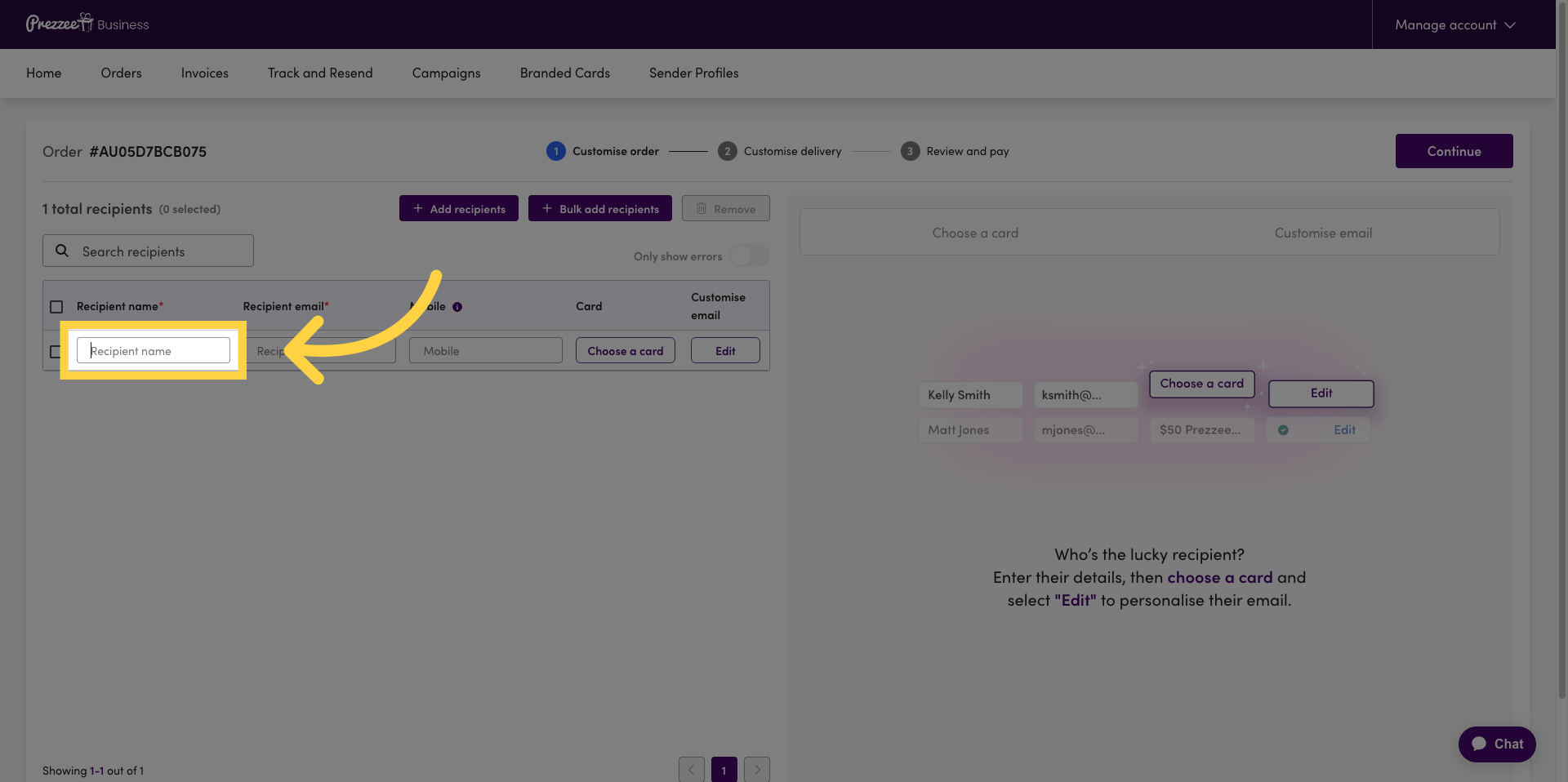
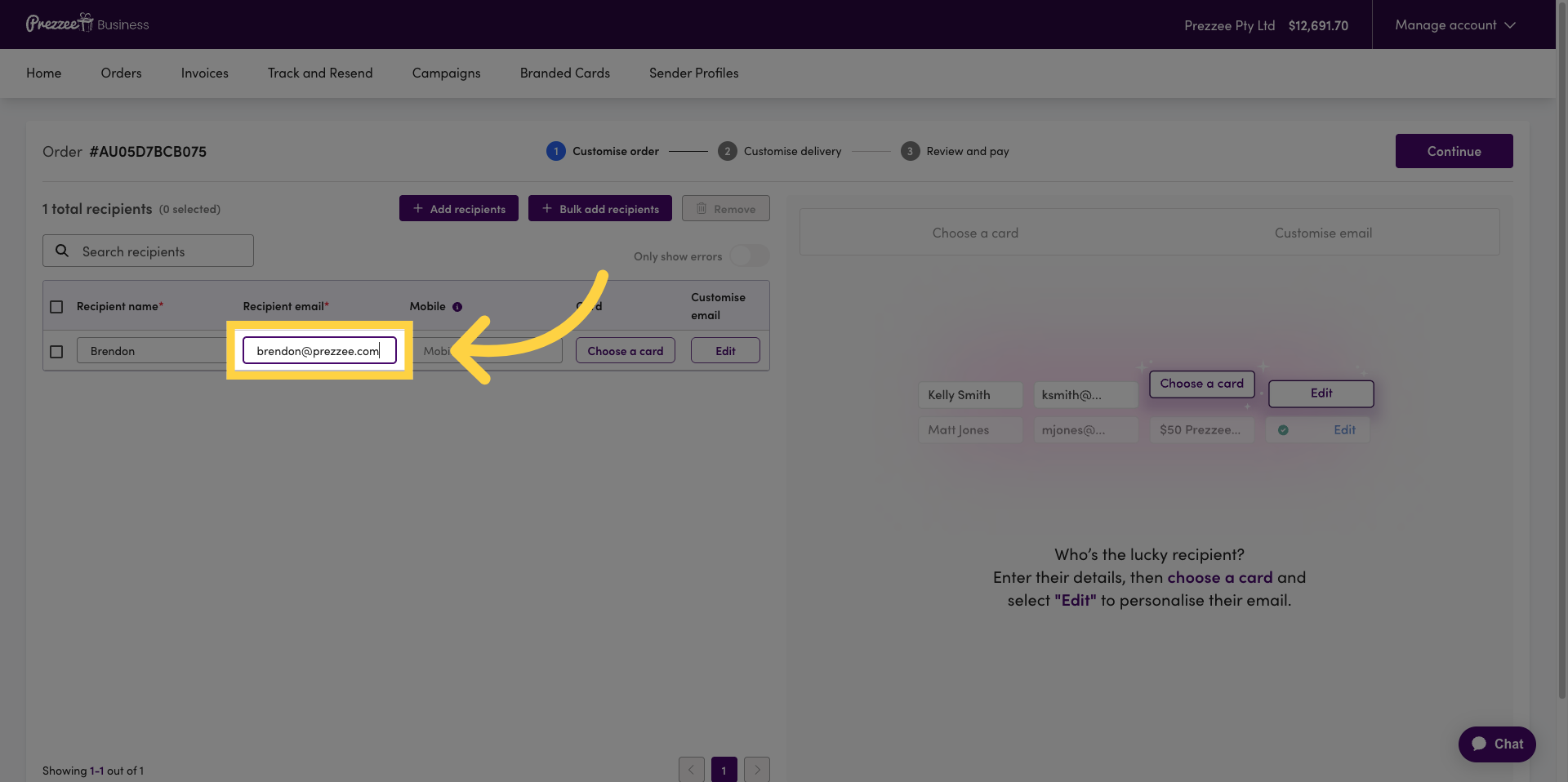
05 Enter Recipient Email
Enter the recipient's email address in the email field to ensure delivery.
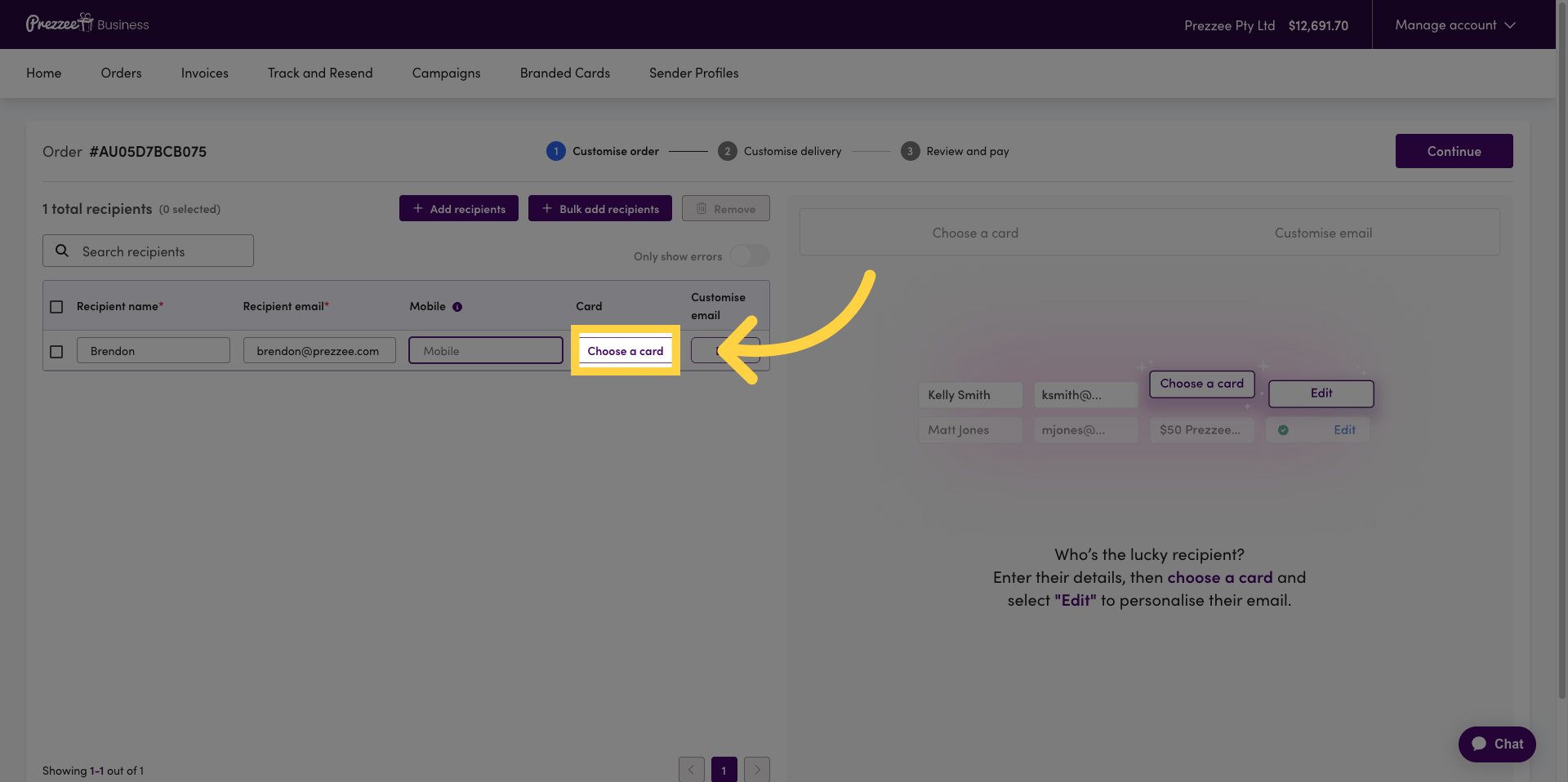
06 Open the Gift Card selection
Click the Choose a card option to view the list of available gift cards for selection.
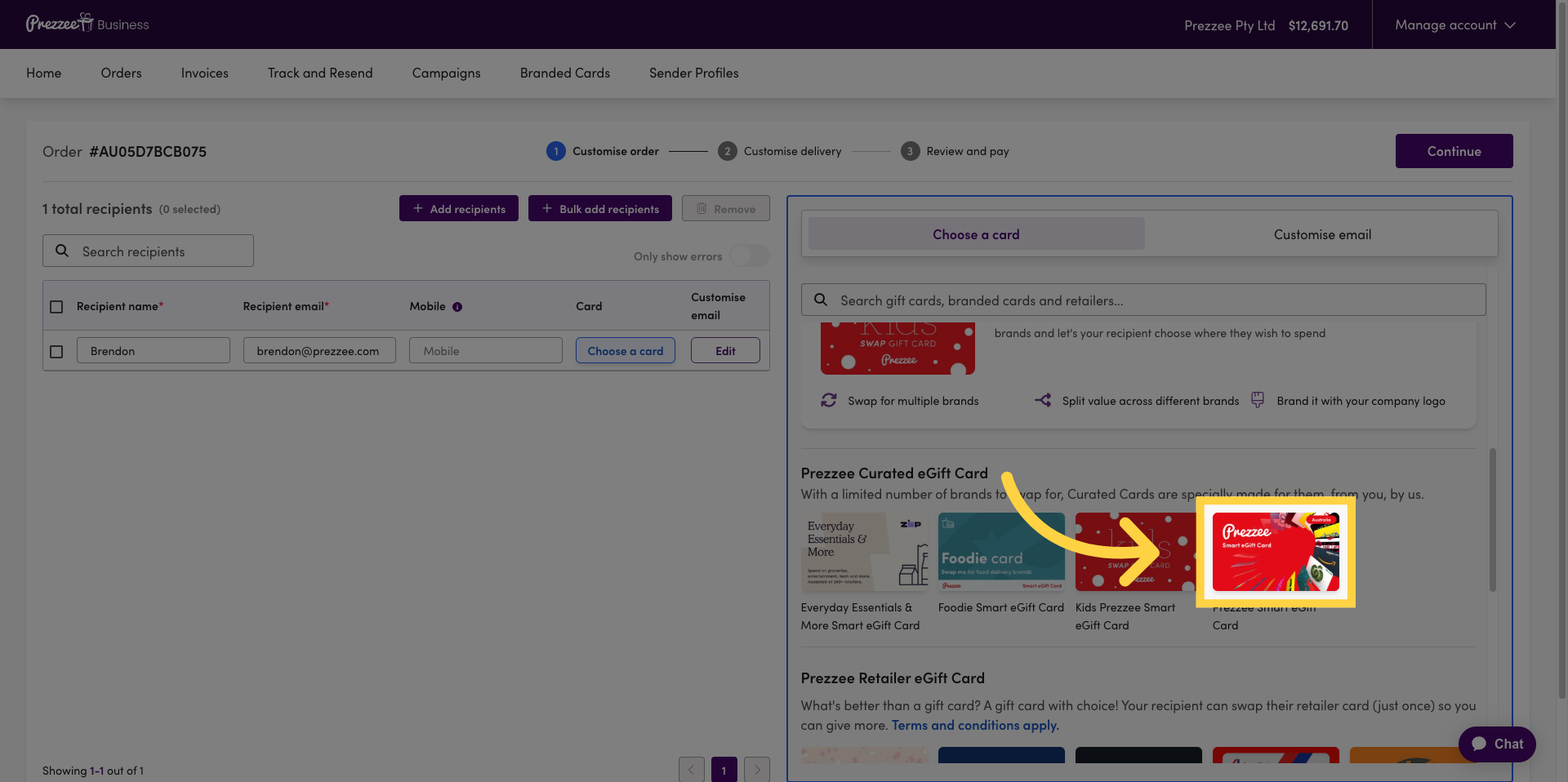
07 Select the Gift Card
Select the gift card you want to send.
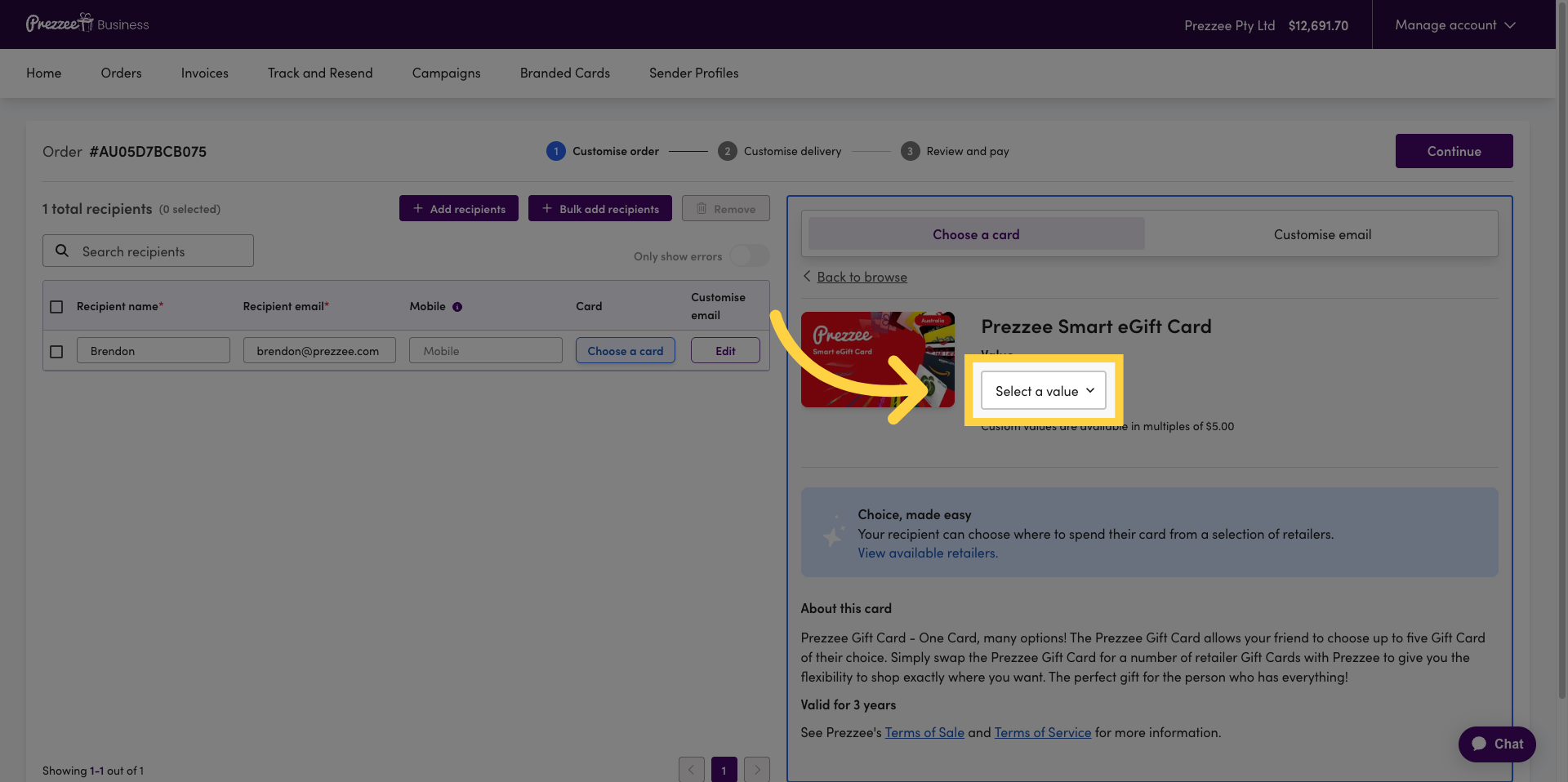
08 Select Gift Card Value
Click the Select a value dropdown to choose the gift card amount.
09 Specify Gift Card Amount
Enter or select the desired gift card amount from the available options.
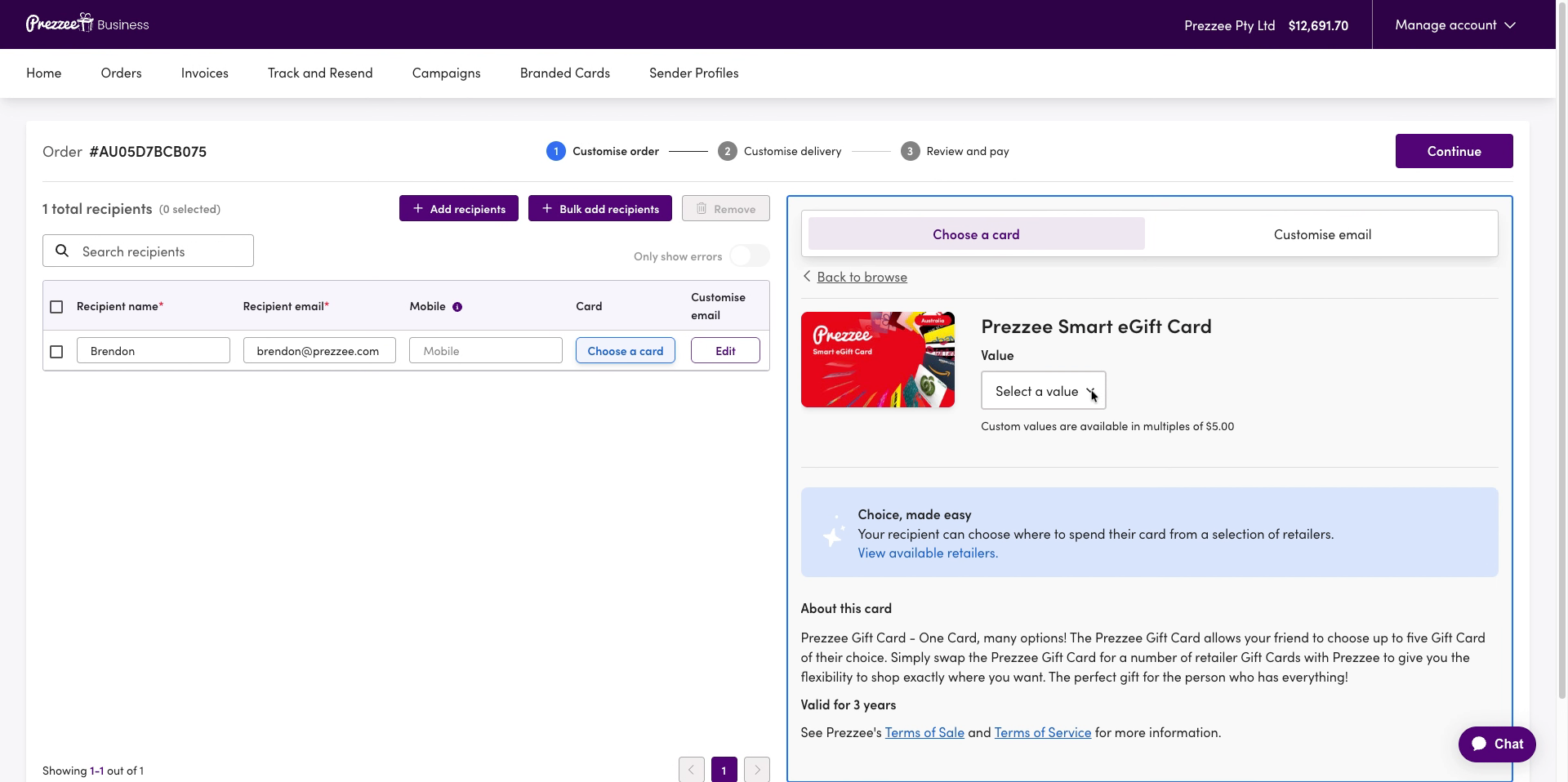
10 Edit Gift Card Email
Click the Edit button to modify the gift card email details as needed.
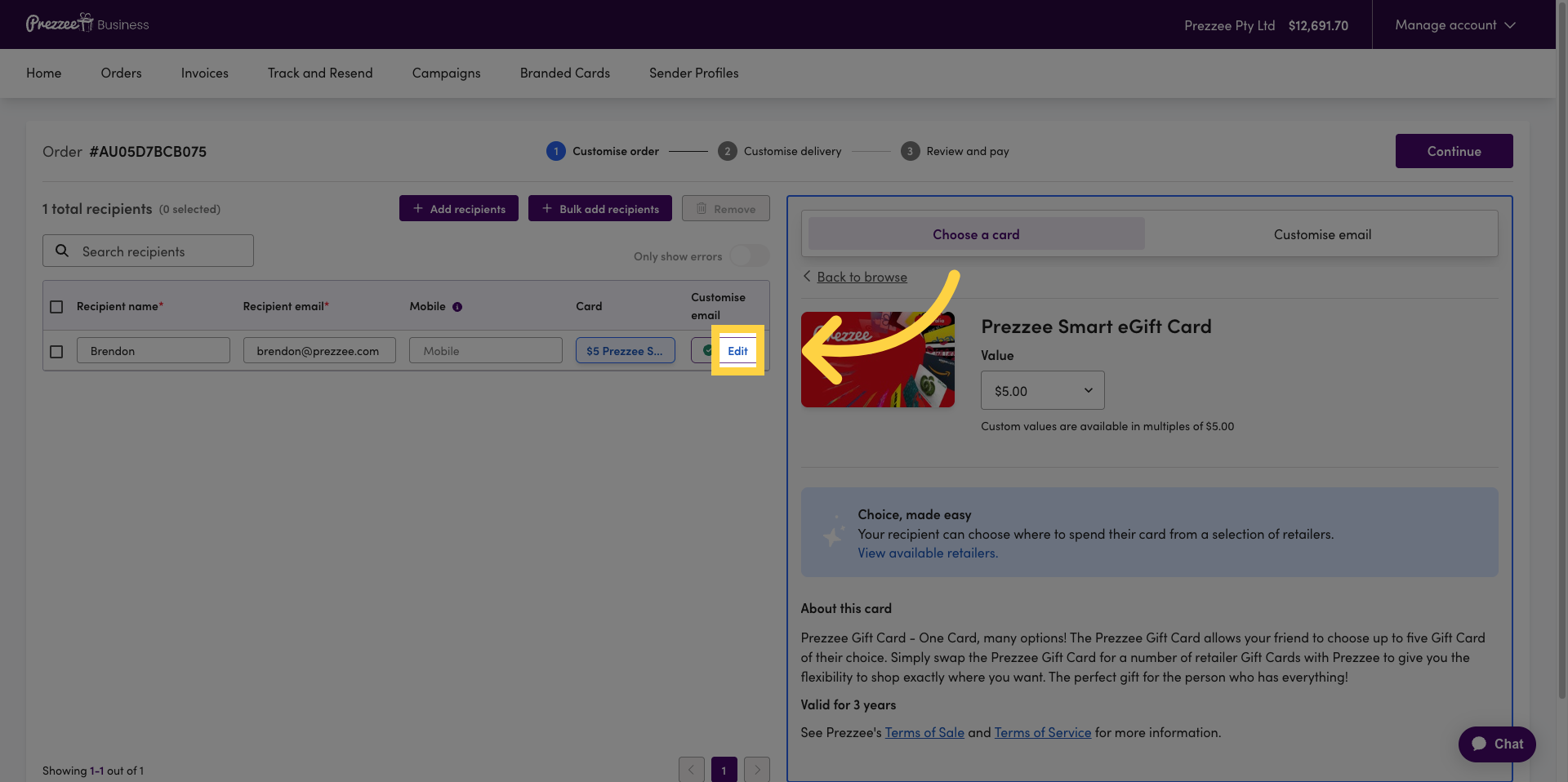
11 Edit Gift Email Details
Click the Edit button to select the gift image as needed.
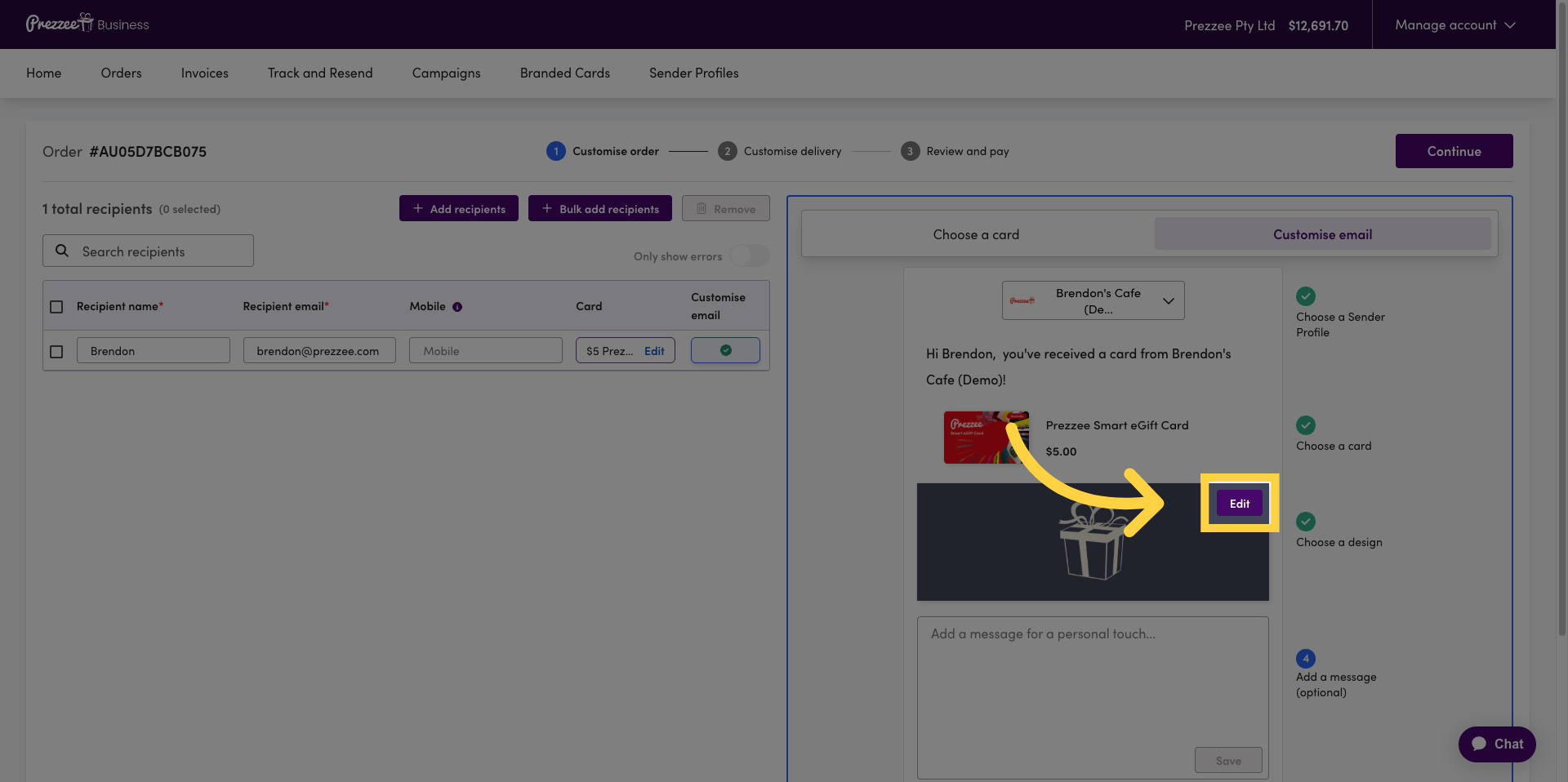
12 Confirm Gift Image Selection
Click the Confirm button to finalise your gift image choice.
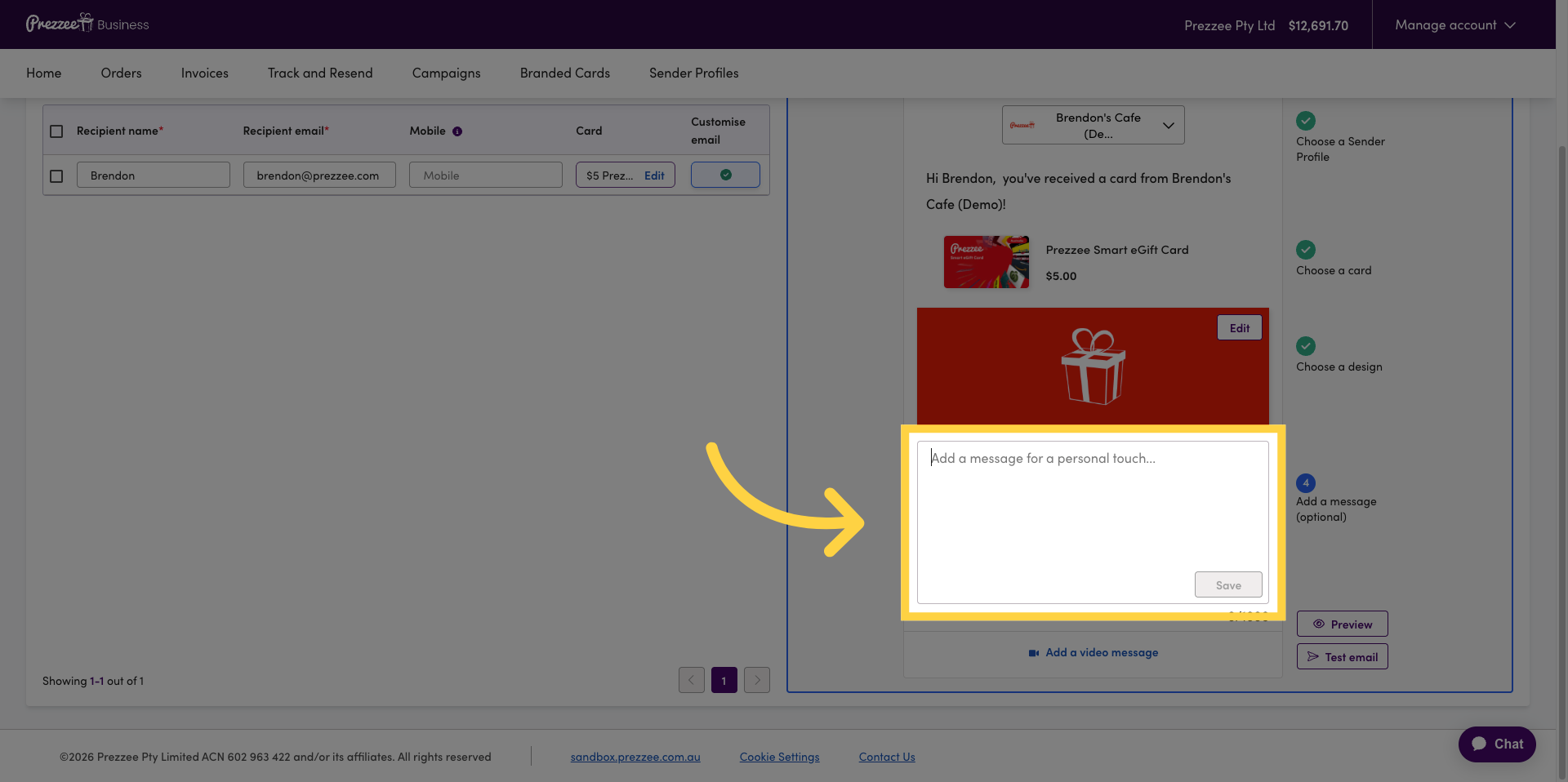
13 Add Personal Message
Click the Add a message for a personal touch field to include a custom message. Up to 1000 characters can be supported in this space.
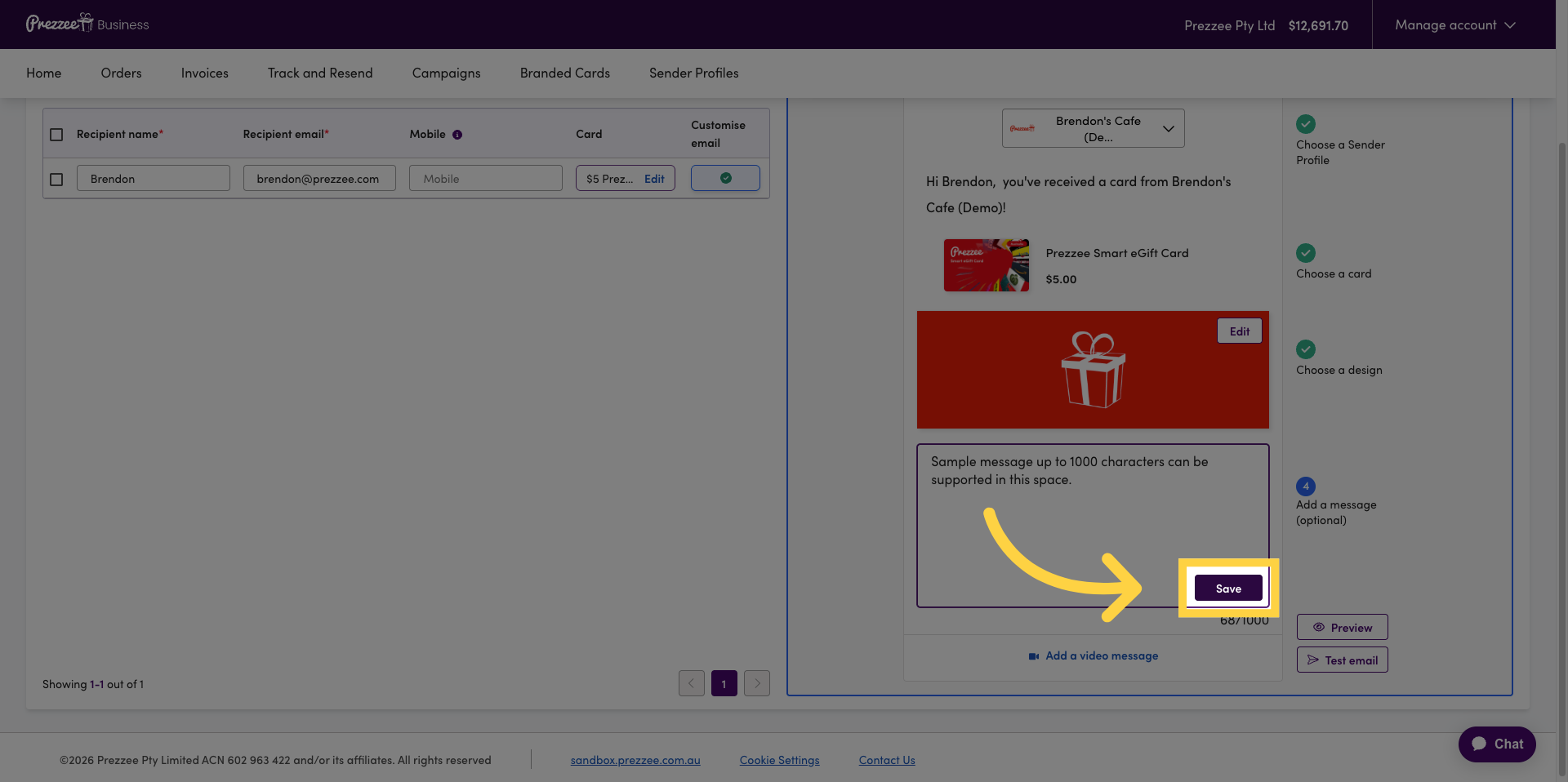
14 Save Personal Message
Click the Save button to save your personalised message and proceed to the next step.
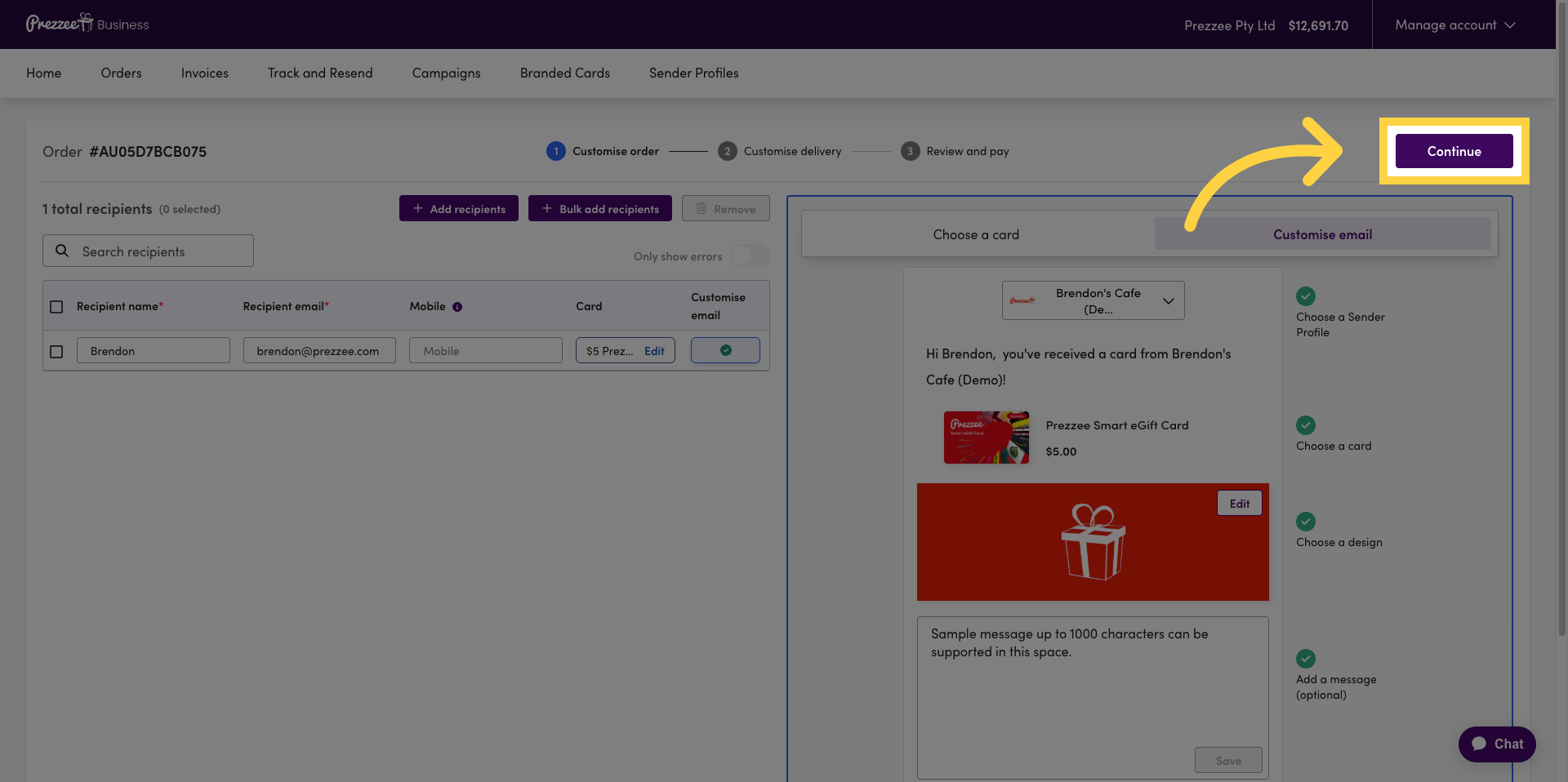
15 Continue Order Process
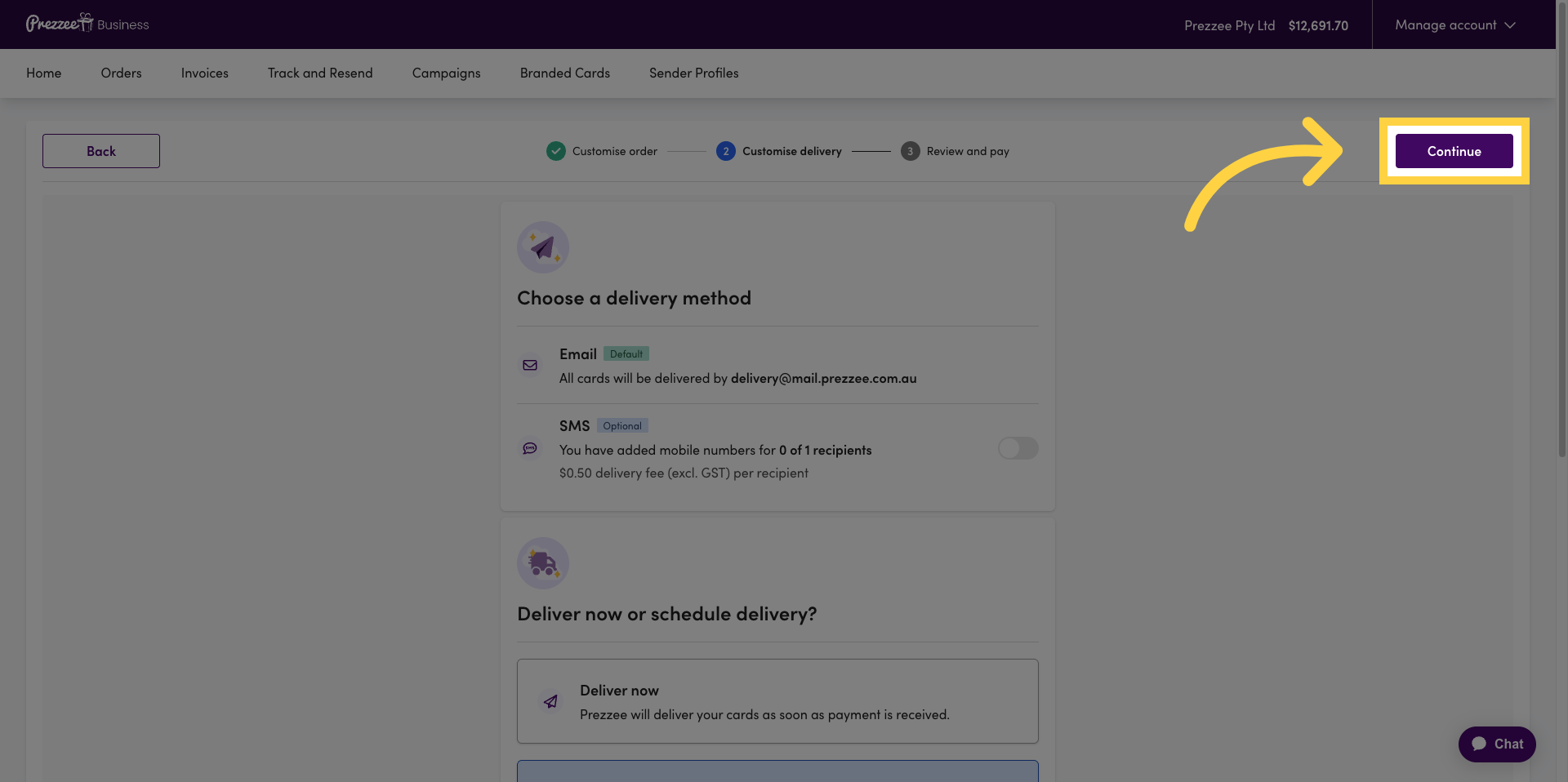
Click the Continue button to proceed to the delivery scheduling step.
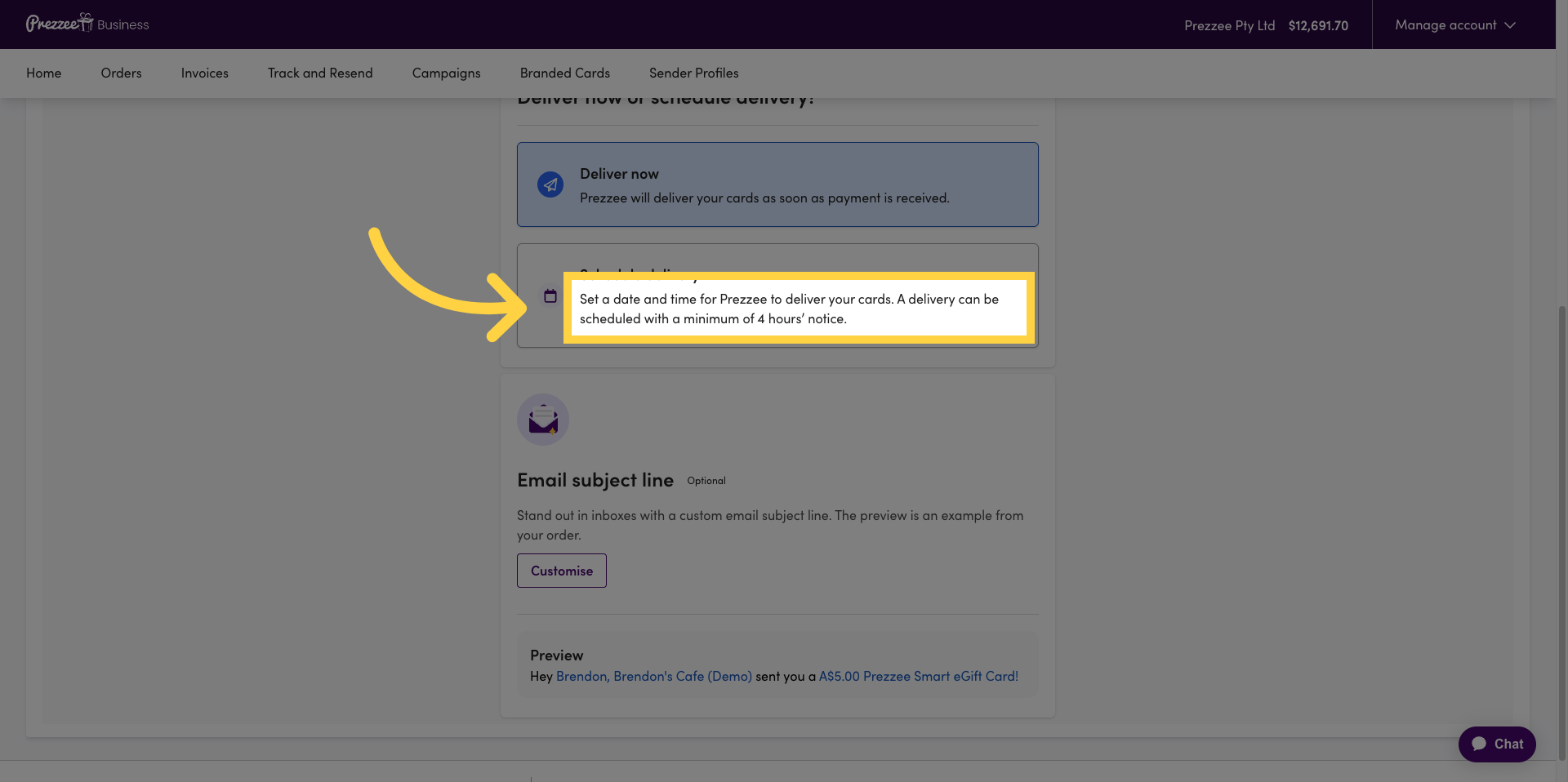
16 Schedule Delivery Time
Click the scheduling option to set a date and time for Prezzee to deliver your cards, with a minimum of 24 hours’ notice.
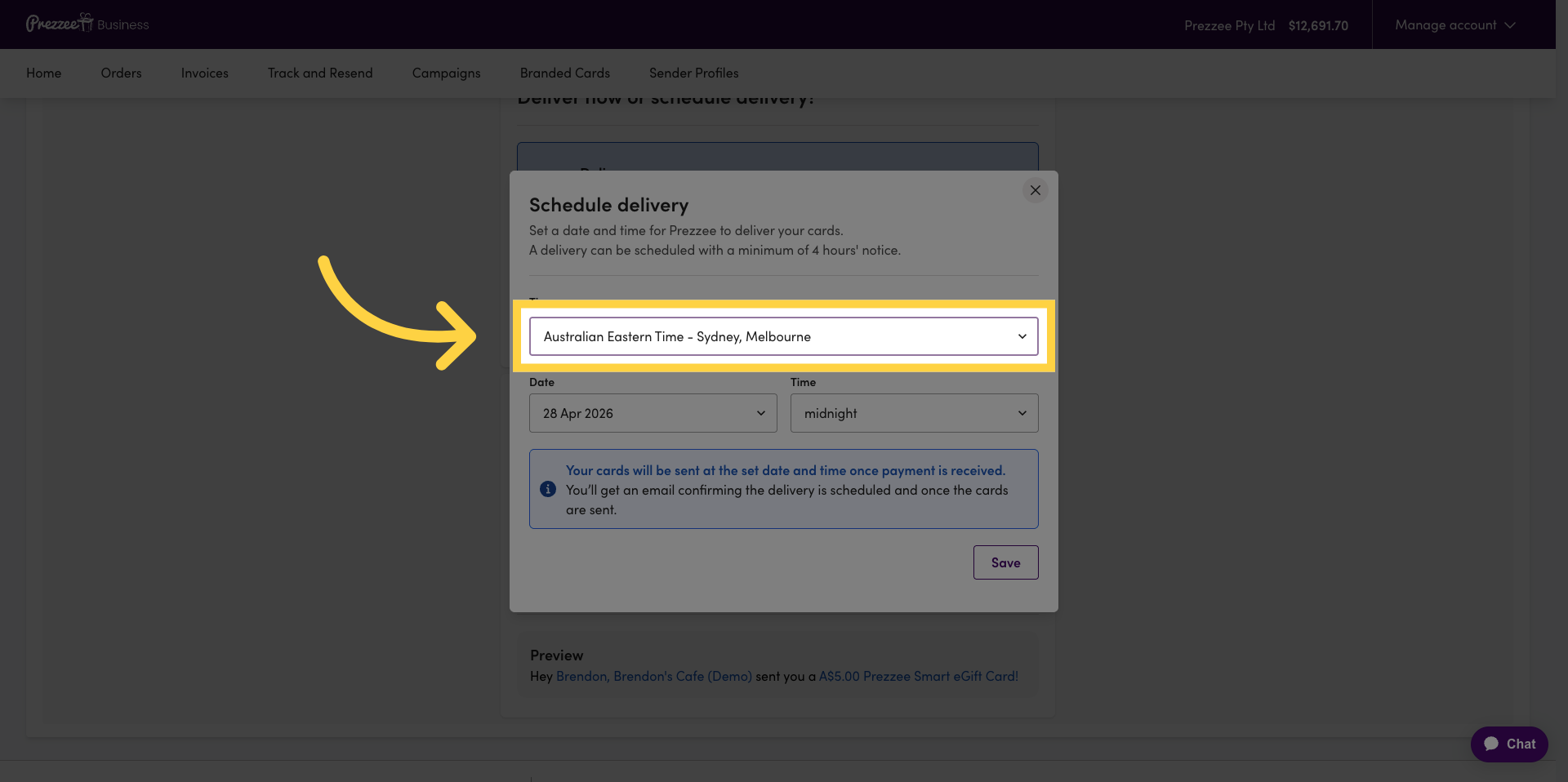
17 Select Delivery Timezone
Click the timezone dropdown to choose the appropriate delivery timezone for your cards.
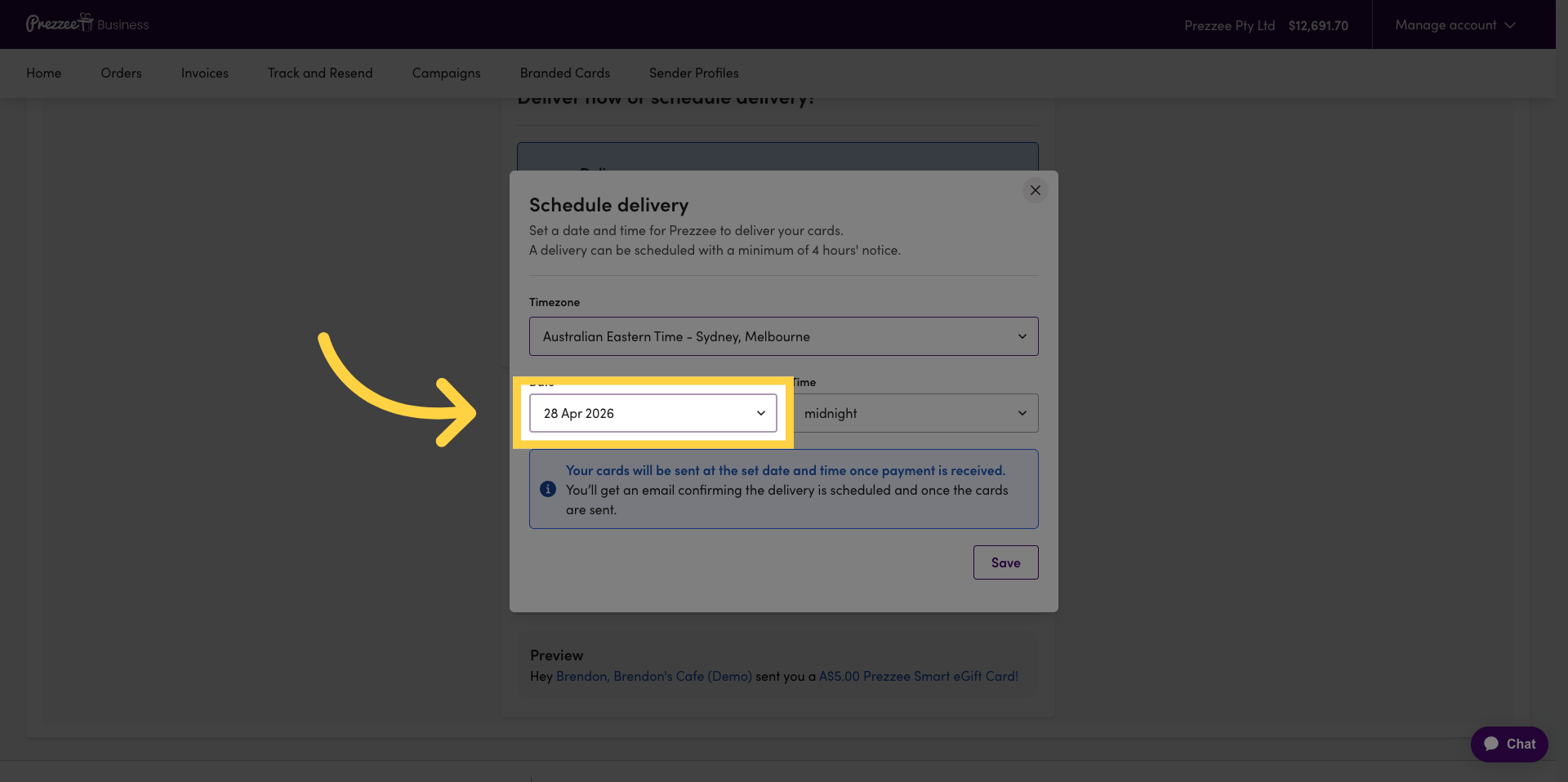
18 Choose Delivery Date
Click the calendar to select the desired delivery date for your gift cards.
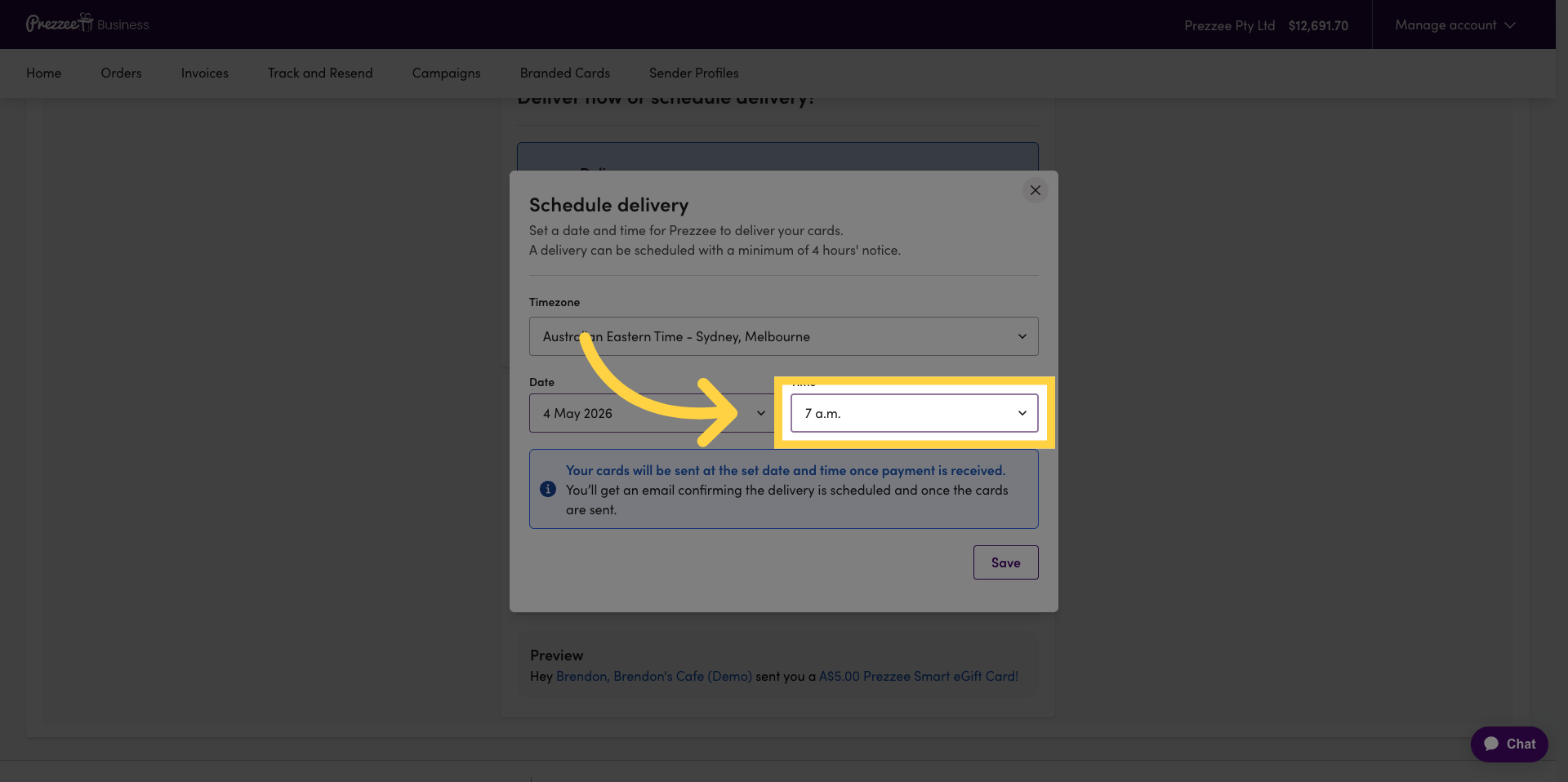
19 Select Delivery Time
Click the time dropdown to choose the specific delivery time for your gift cards.
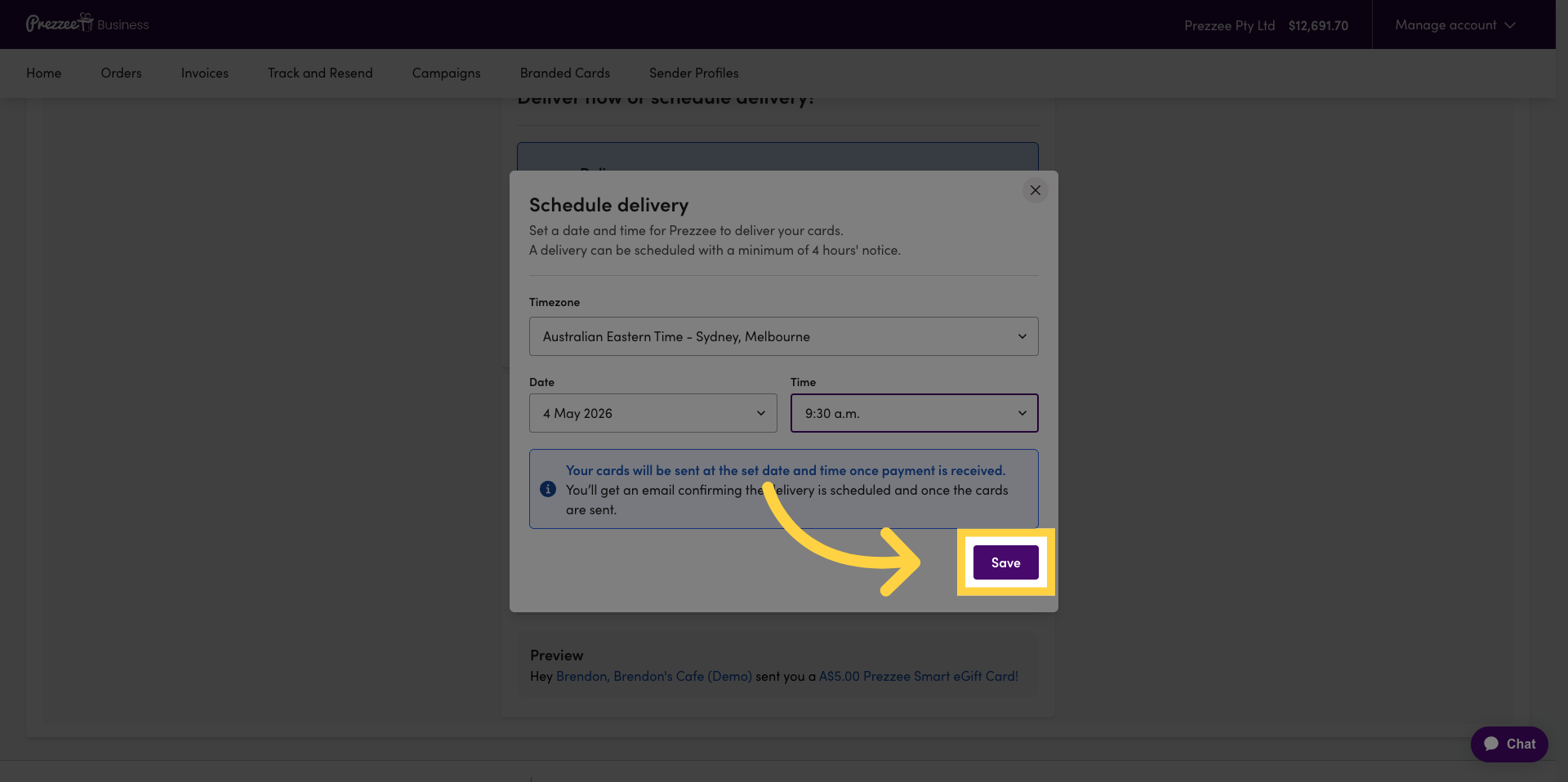
20 Save Delivery Schedule
Click the Save button to save your delivery date and time settings.
21 Complete Order Scheduling
Click the Continue button to finalise your gift card order and scheduling.
You have successfully placed and scheduled a gift card order using Prezzee Business. Your cards are now set to be delivered at the specified date and time, with personalised messages included for each recipient.