
This tutorial guides you through depositing funds into your Prezzee Business account.
Go to prezzee.com.au
01 Introduction
You will learn how to enter the amount, generate an invoice, and download it for your records and payments process.
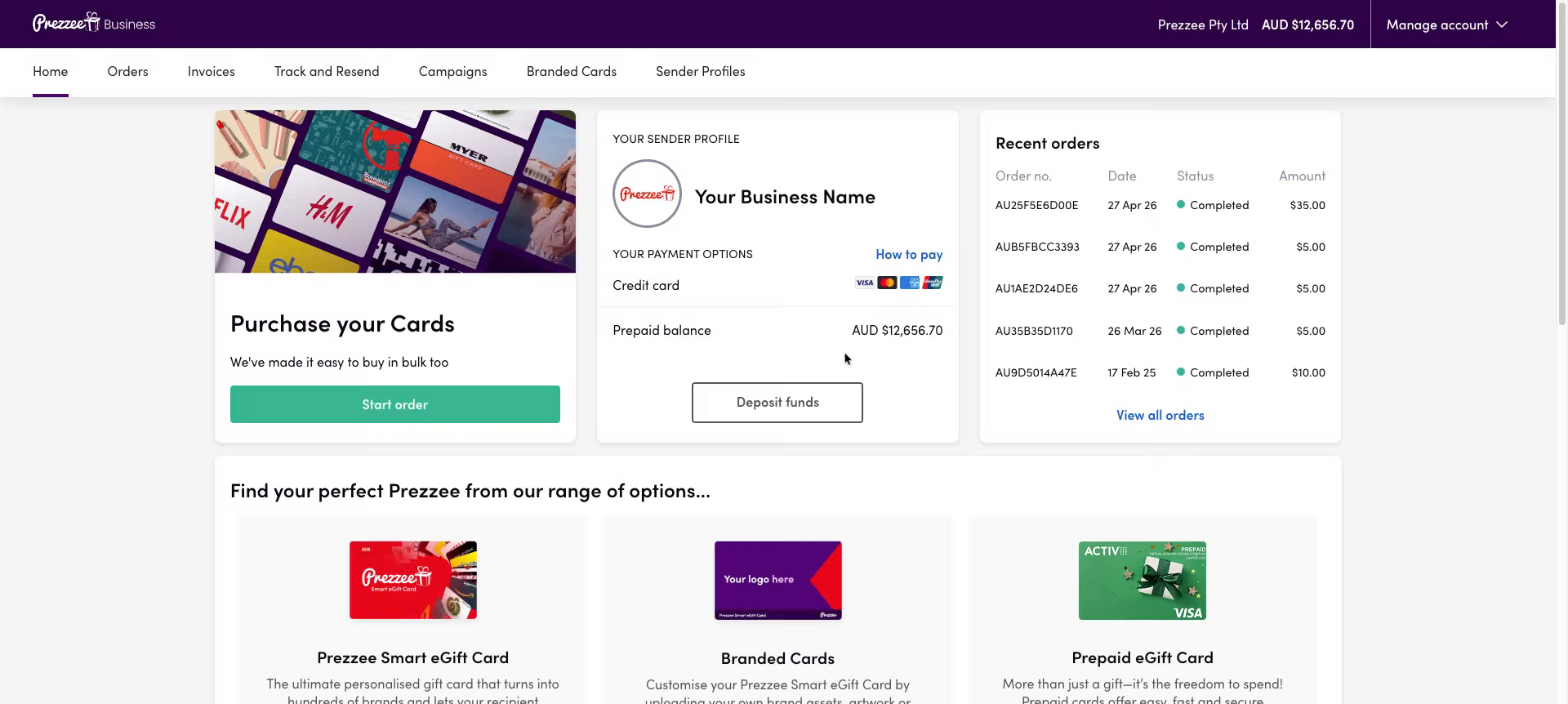
02 Access Deposit Funds Section
Click "Deposit funds" to open the deposit section in your Prezzee Business account.
NOTE: Credit cards can only be used at checkout.
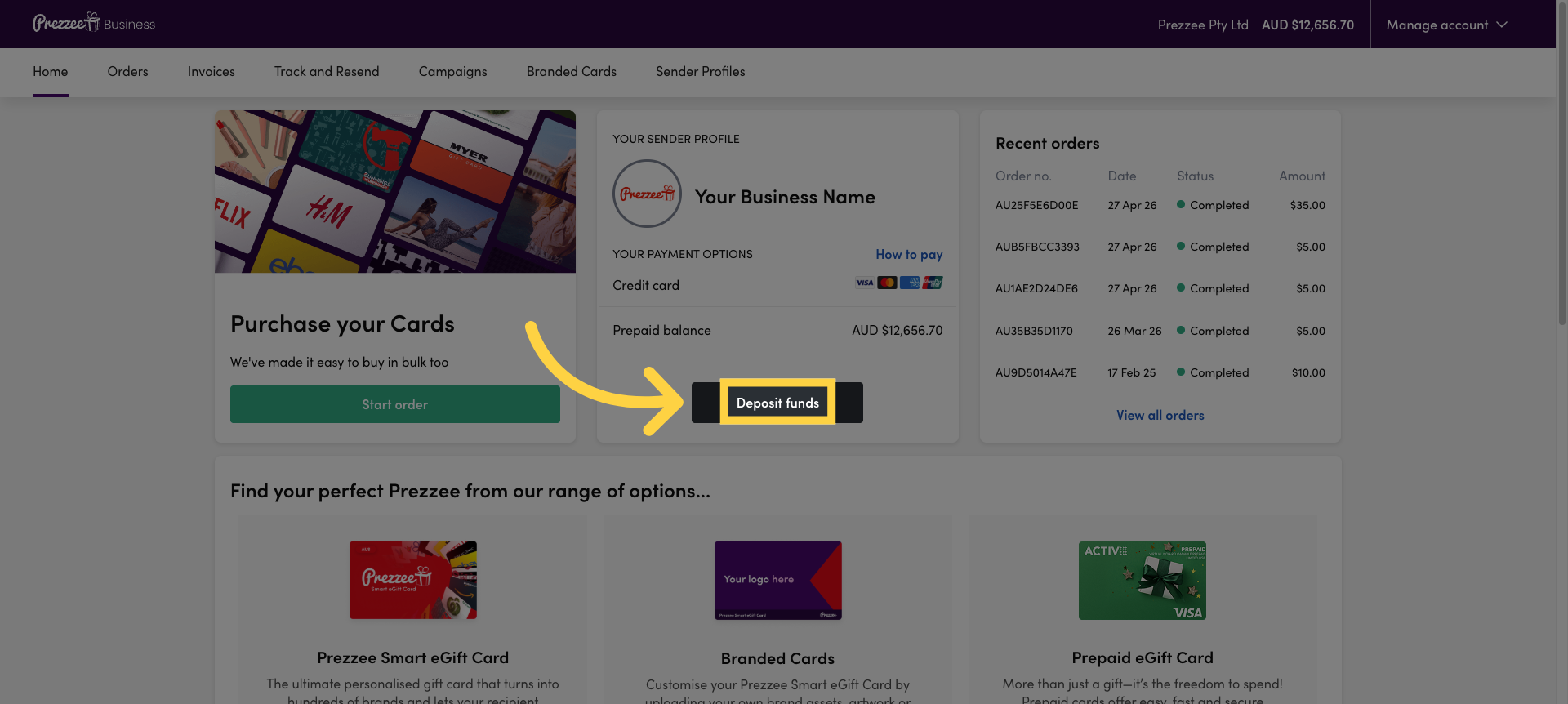
03 Open Amount Input Field
Click the "0.00" field to activate the amount input area for your deposit.
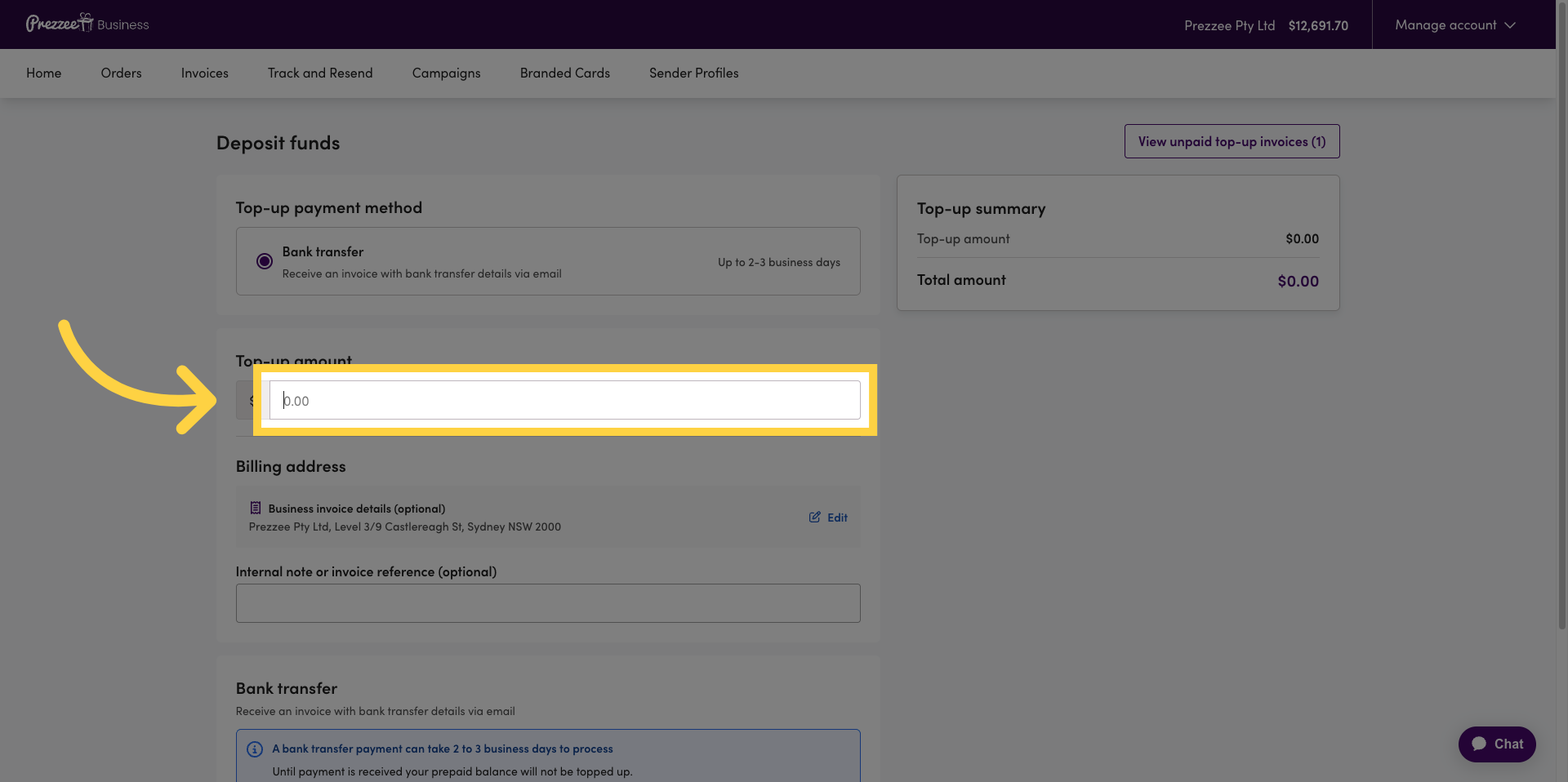
04 Enter Deposit Amount
Fill in the amount you wish to deposit into your account.
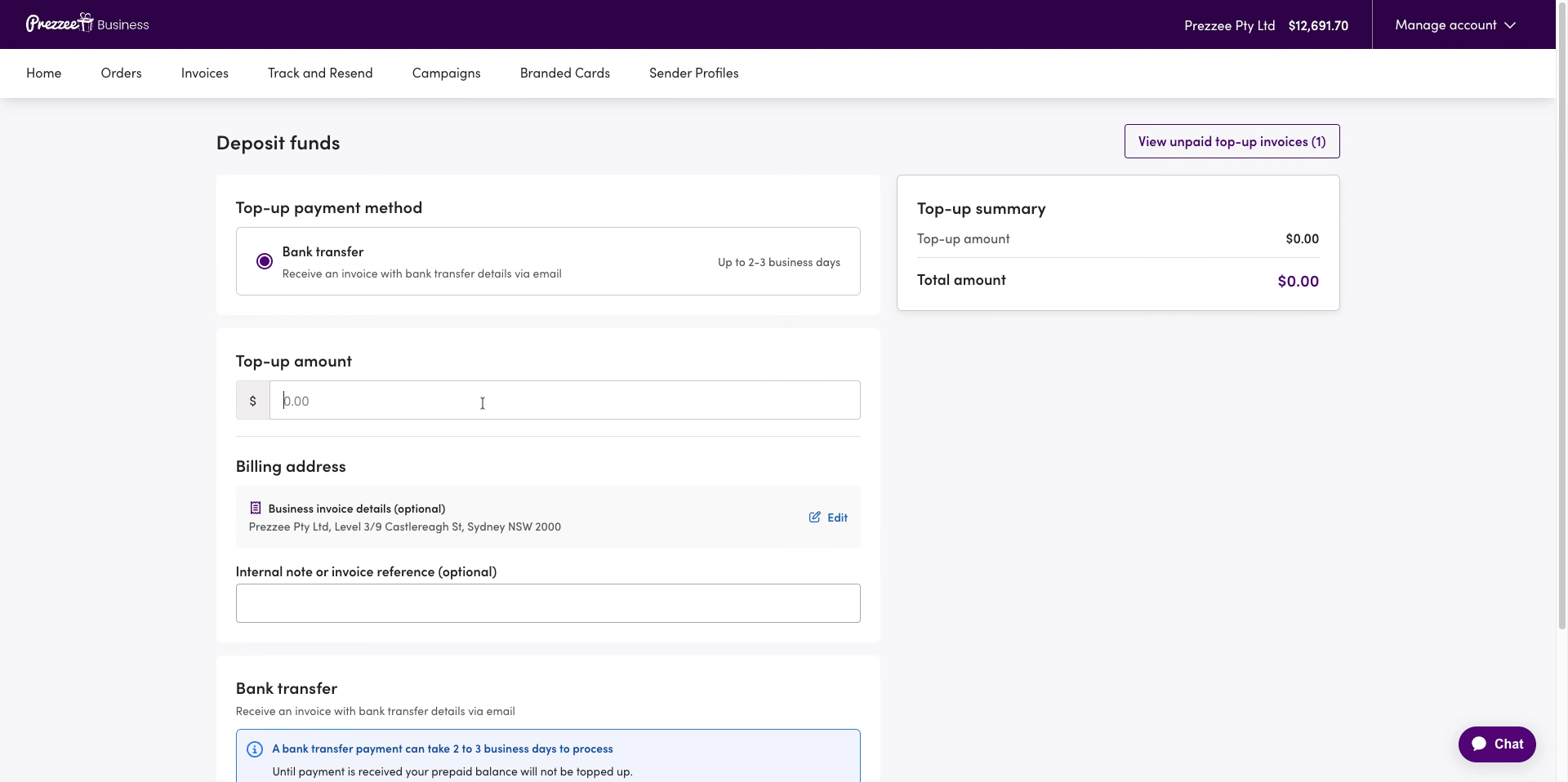
05 Enter optional reference number or note
Click here to add an optional reference number or note for your reference.
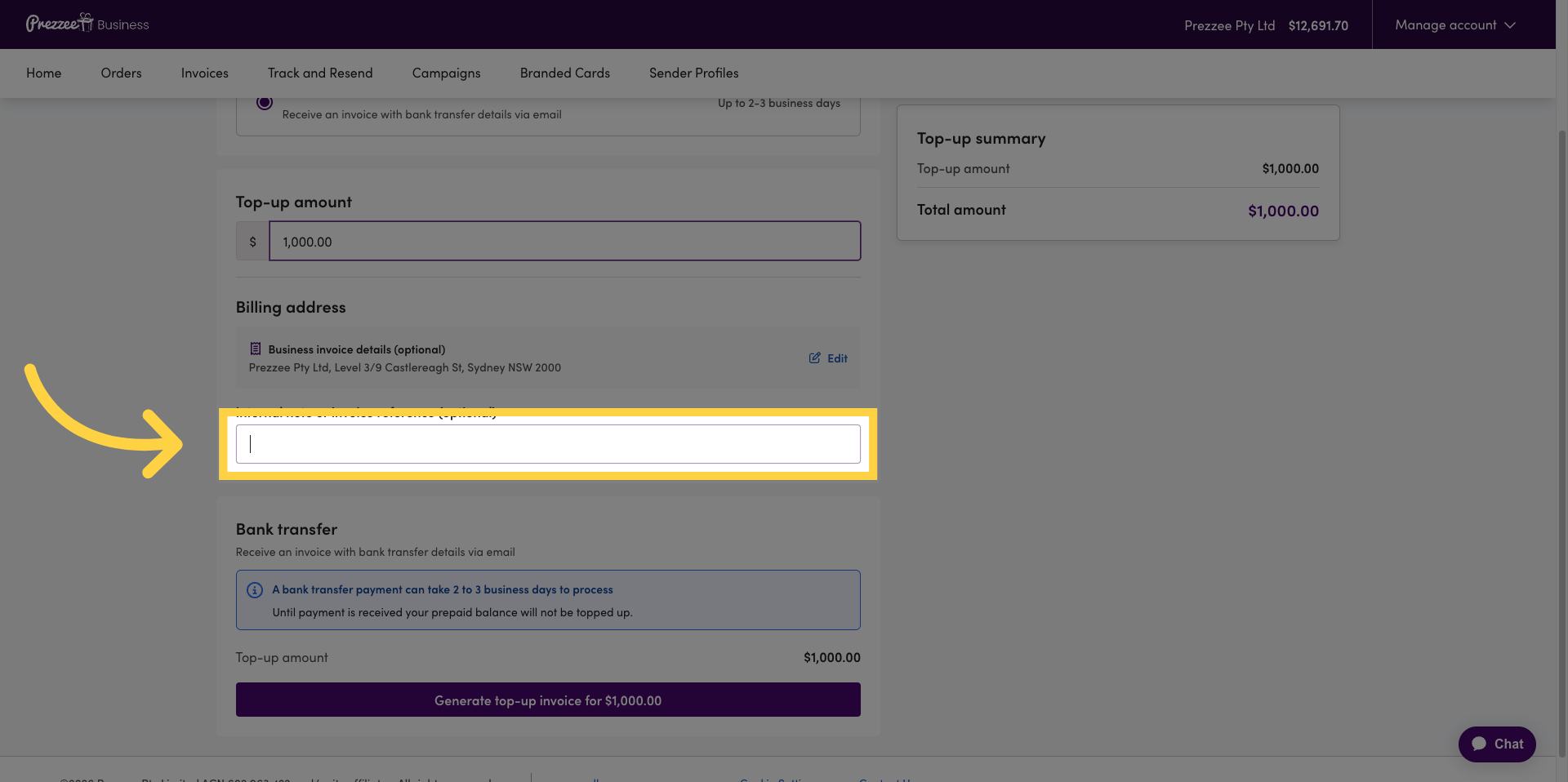
06 Proceed to Next Step by clicking on Generate Top-Up Invoice
Click on Generate Top-Up Invoice
07 Download Invoice Document
Click the download icon to save the generated invoice to your device for your records.
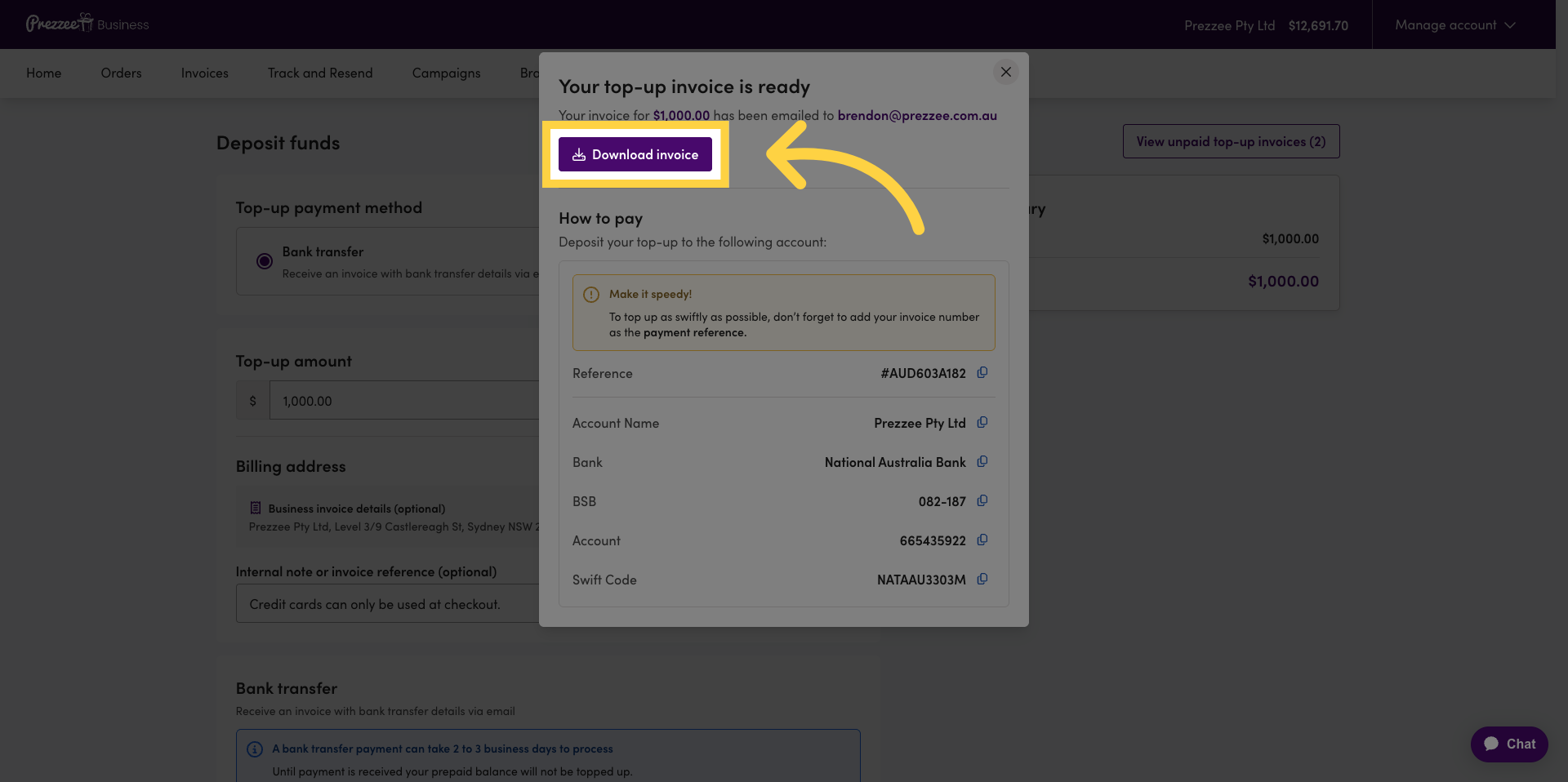
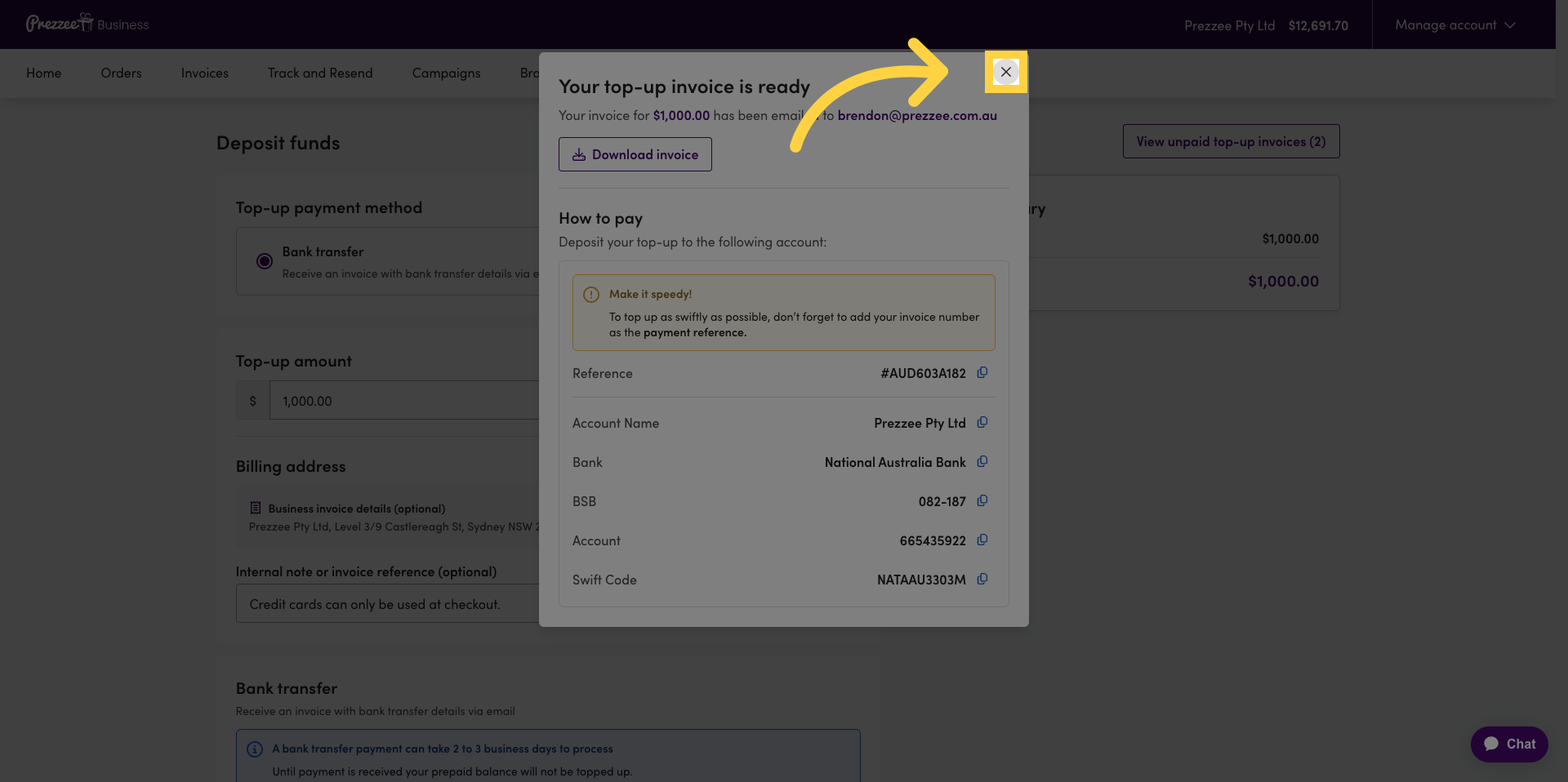
08 Complete your Deposit / Payments Process
Click here to return to the main deposit page.
You have successfully deposited funds into your Prezzee Business account by entering the amount, adding a payment note, generating an invoice, and downloading it for your records. This process ensures your account is funded securely and properly documented.